Batch Translate Multiple Files from a Single ZIP
Drop in one ZIP archive and Doc2Lang unpacks it right in your browser. Pick the documents you want translated, and only those files leave your device. In spreadsheets, formulas, numbers, dates and URLs are never sent to the translation model, so a translated workbook still calculates.
or drag and drop
Supported: PDF, Word, PowerPoint, Excel, CSV, EPUB, Subtitles (SRT, WebVTT, ASS), Video, Audio, Images
Why batch translate from a ZIP
Your archive never leaves your browser
The ZIP is decompressed locally, on your own machine. The archive itself is never uploaded to us. Only the individual files you choose to translate are sent to our servers.
Formulas, numbers and dates stay untouched
In Excel files, only text cells are sent to the translation model. Formula cells, numeric cells and cells holding a URL are skipped entirely, so a translated workbook still recalculates.
One archive, many formats
Excel, Word, PDF, PowerPoint, CSV and subtitle files can sit in the same ZIP. Each file is translated by the engine built for its format, not by a generic text pass.
Pay only for what you translate
Unpacking is free and there is no fixed limit on how many files an archive holds. You are charged per file, and only when you send that file for translation.
What gets translated, and what does not
Doc2Lang reads each format with the parser built for it, rather than flattening a document into one block of text. That decides, precisely, what changes and what is left alone.
| Content | Translated? | What happens |
|---|---|---|
| Text in cells, paragraphs, slides and subtitles | Yes | Sent to the model together with its surrounding context, so wording fits the document rather than the sentence alone. |
| Excel formulas, numbers and URLs | No | Formula cells are never read as text, so =SUM(B2:B10) comes back exactly as it went in. Numeric cells, and cells holding only a number or a URL, are skipped too. |
| Excel charts and text boxes | Yes | Chart titles, axis labels, series names and the text inside shapes sit outside the cell grid. They are picked up as well, which spreadsheet translators routinely miss. |
| Scanned pages in a PDF | Yes | A scanned page is read with OCR first, then the translation is placed back where the original text sat. |
| PowerPoint speaker notes | Yes | Notes, slide layouts and slide masters are translated along with the slides themselves. |
| Subtitle timings | No | Only the dialogue lines change. Every timestamp and cue stays exactly where it was. |
| Text inside embedded images, macros | No | A picture embedded in a spreadsheet, document or slide is not read as text, and macros are left alone. Scanned PDFs are the one exception, above. |
| Styles and layout | No | Only a value is rewritten. Fonts, fills, number formats and cell positions stay attached to where they were. |
Translating a single file instead? See how we handle translating Excel files online and scanned PDF translation, or read how we handle your data.
How it works
1. Build your ZIP
Put the documents you want translated into one ZIP archive of up to 200 MB. Sub-folders are fine. You will see each file's path inside the archive, which makes similarly named files easy to tell apart.
2. Unpack and set your options
Drop the ZIP onto the upload area. Doc2Lang decompresses it on your own device, asks for your languages, model, style and glossary once, then lists every file it contains. Nothing has been uploaded at this point.
3. Pick a file and check the preview
The file list shows everything in the archive. Press Upload on the files you want. An uploaded row turns green and offers a translation preview, where you see a sample of the result and its exact cost before you pay.
4. Download the translated file
Each translated document downloads on its own, in the same format you uploaded. Translated files are not repackaged back into a ZIP archive.
What the flow actually looks like
Five real screens from translating the sample archive below into French. No file was uploaded until the Upload button on its row was pressed.
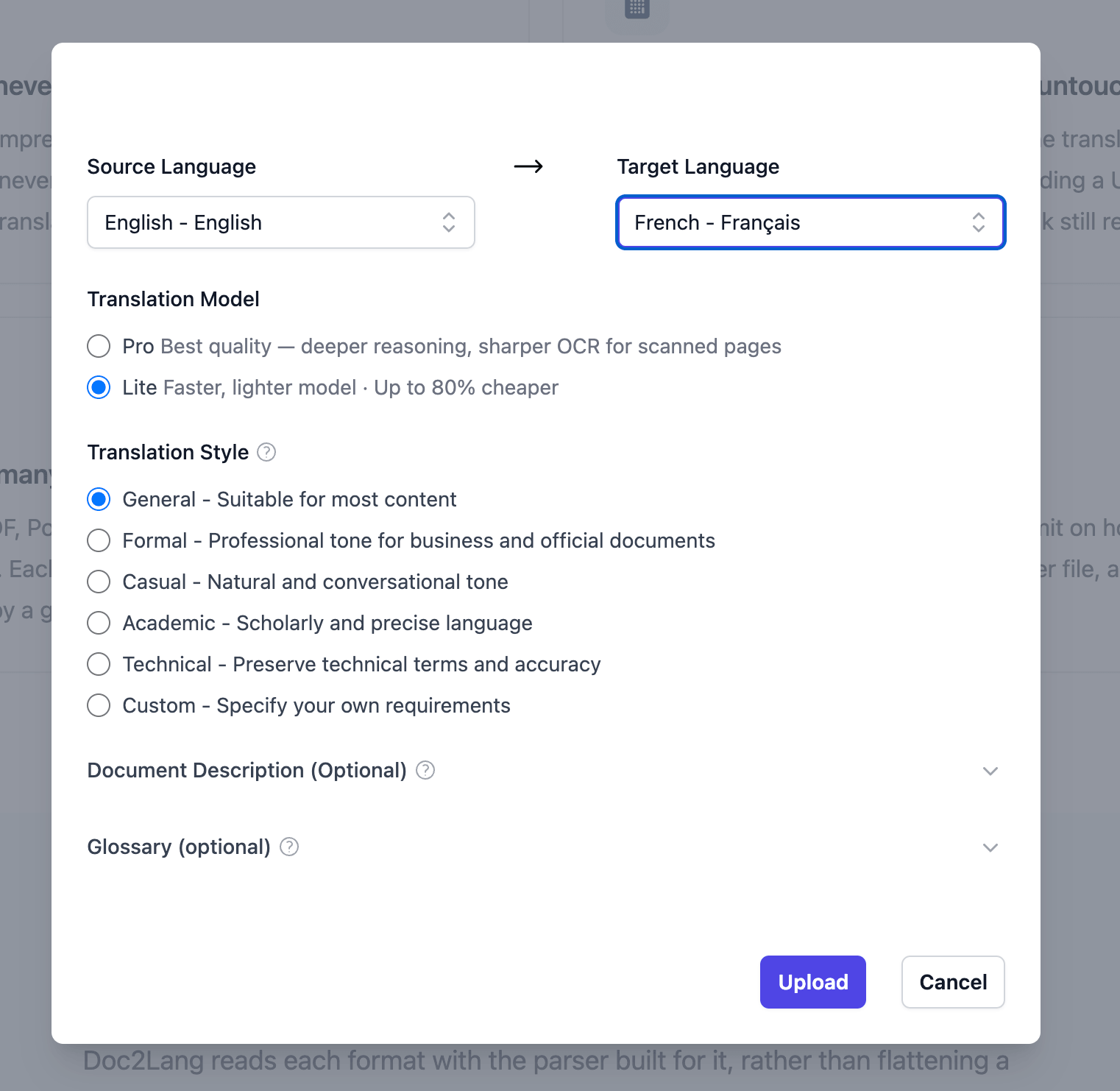
Set your options once, for the whole archive
Languages, translation model, style and glossary are chosen when the archive is opened. Every file you go on to translate from it reuses them, so you configure nothing twice.
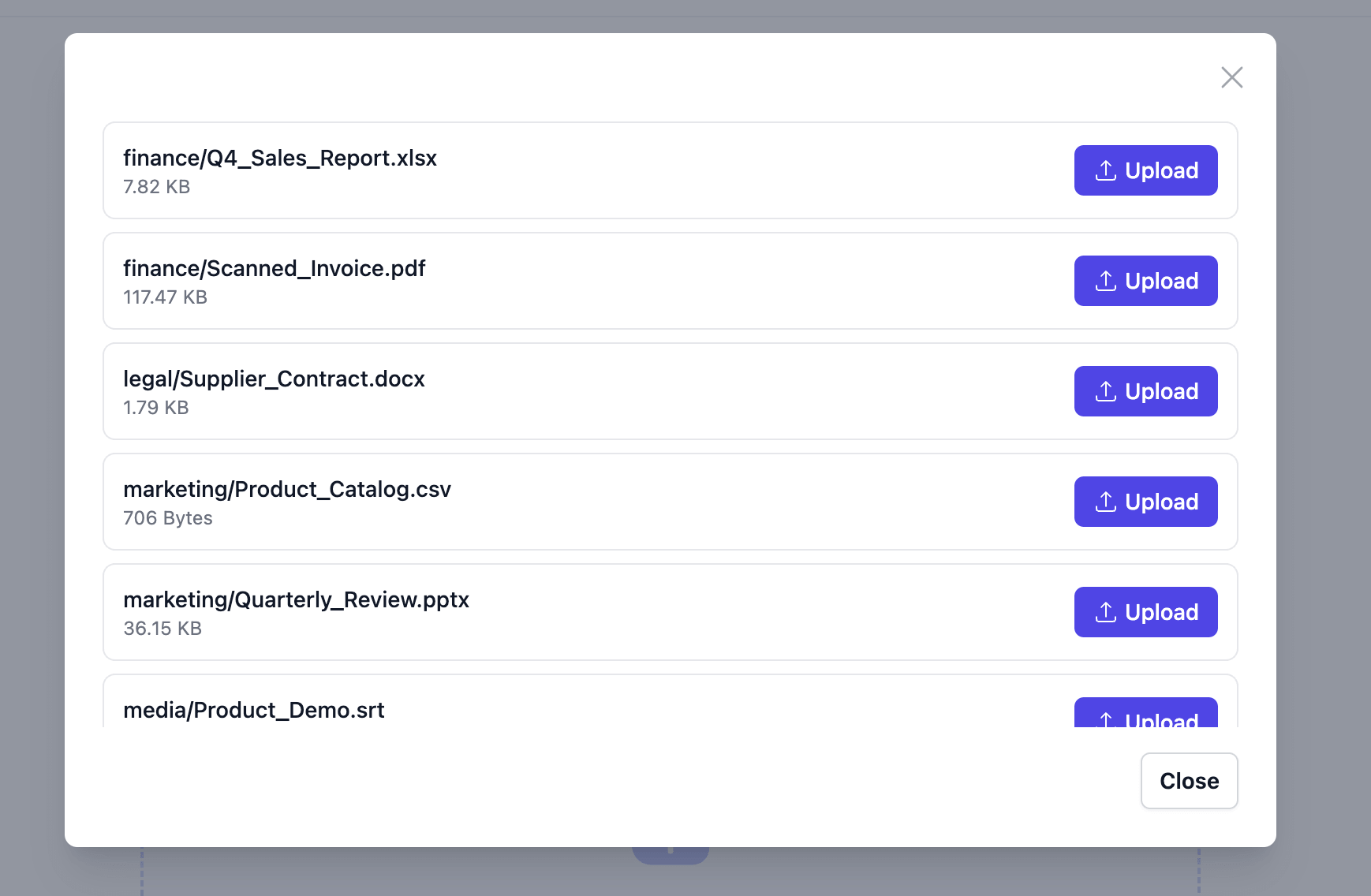
Everything in the archive, still on your machine
The ZIP is decompressed in your browser, so the list appears before anything is sent. Each row shows the file's path inside the archive and its size, and each has its own Upload button.
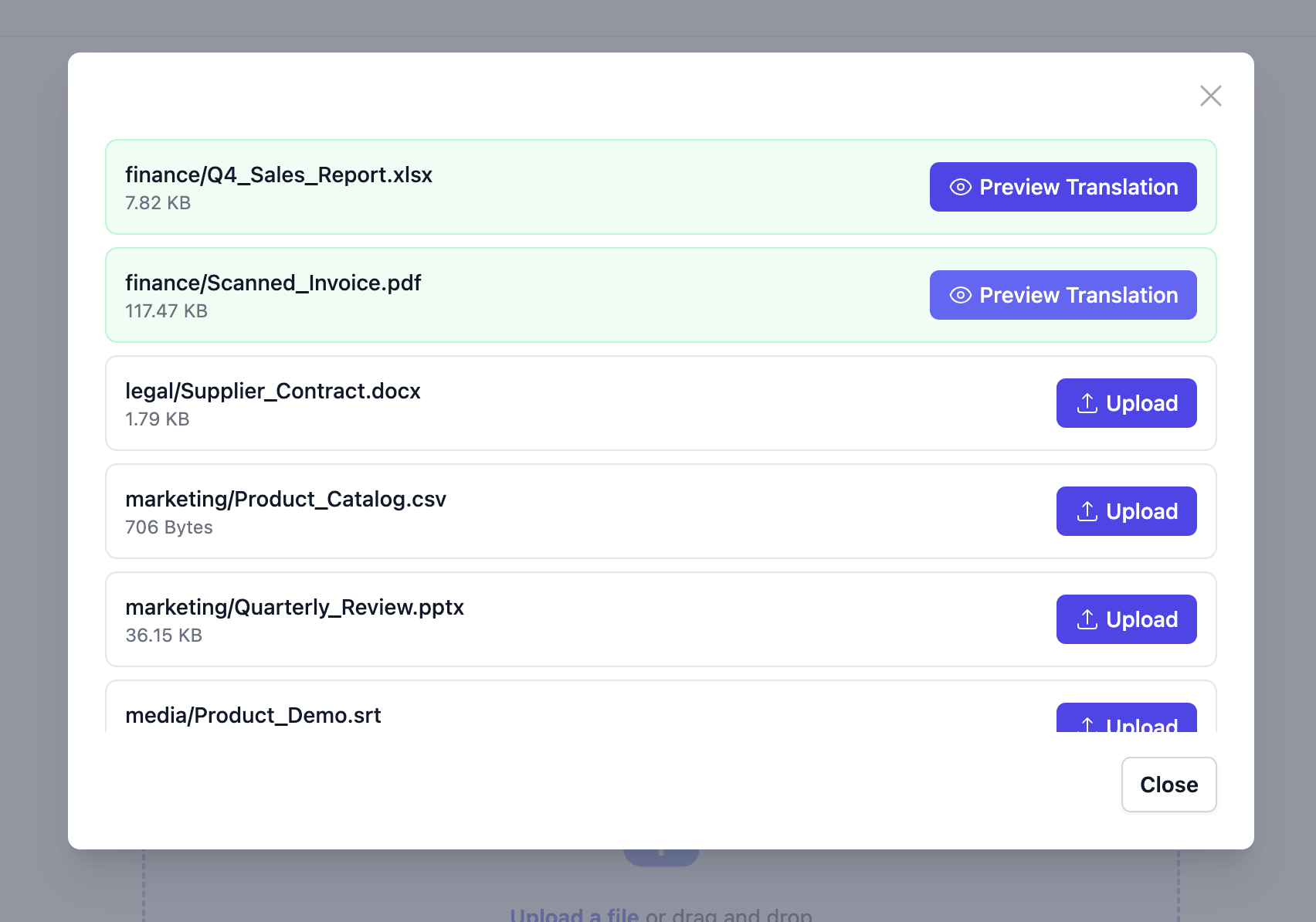
Upload only the files you need
Here the spreadsheet and the scanned invoice have been uploaded; the contract, the catalog, the slide deck and the subtitles have not. Uploaded rows turn green and open a translation preview. The four untouched files were never sent anywhere, and cost nothing.
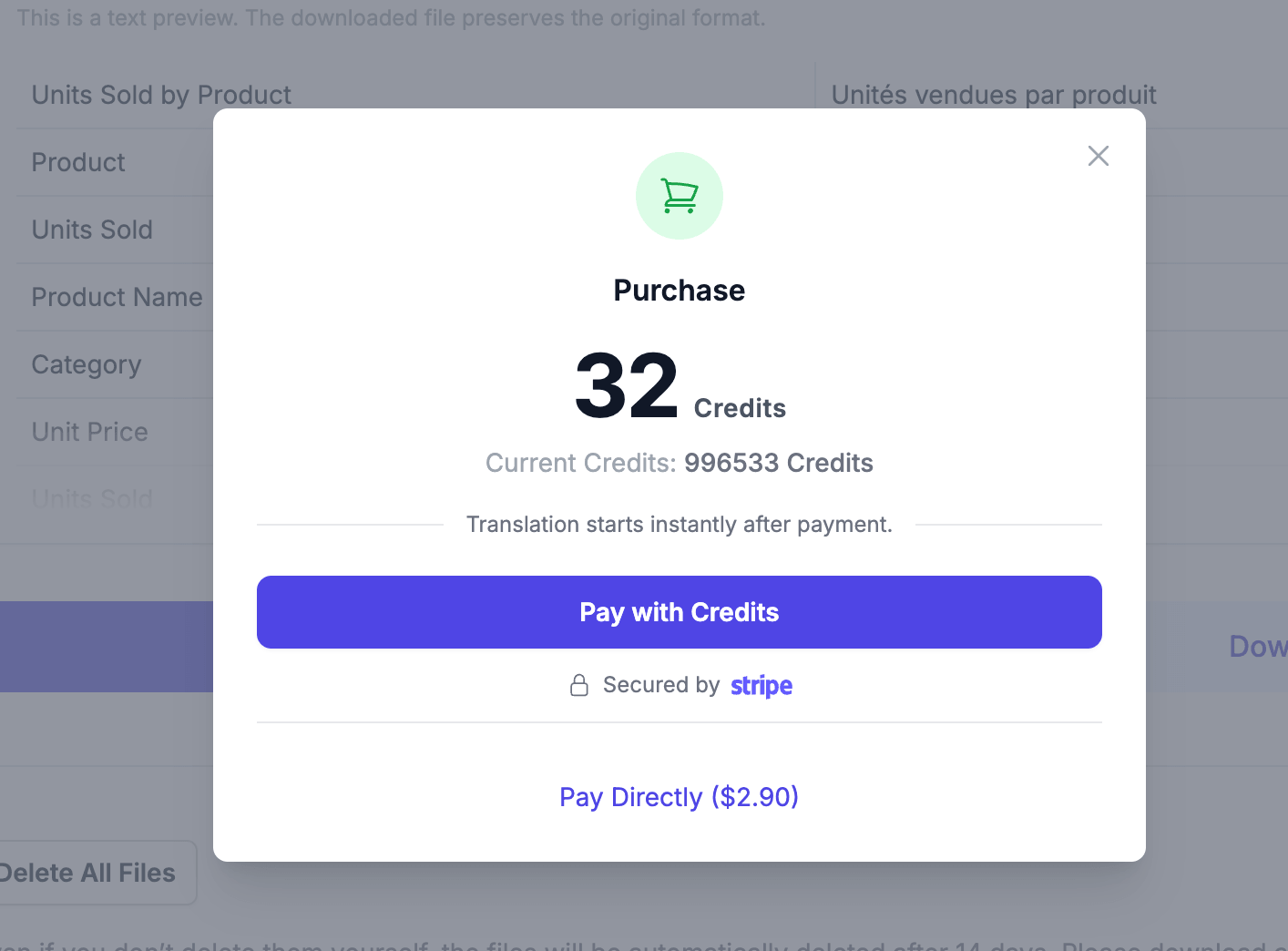
The exact price, before you pay
Only after the preview does a price appear, and it is the price for that one file. Pay from your credit balance or directly by card. The other five files in the archive are still untouched and still free.
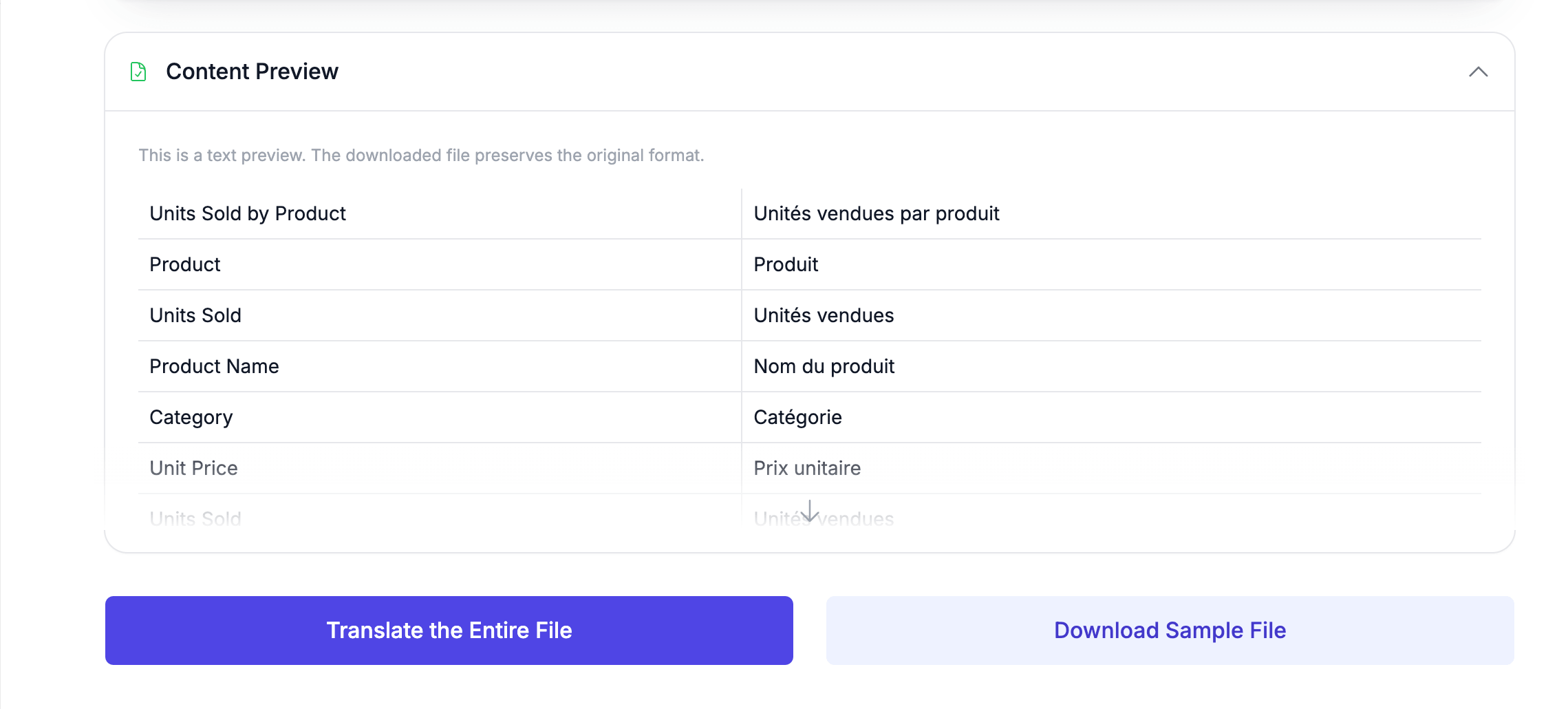
Chart titles and axis labels, not just cells
The preview puts the original beside the translation. Notice the first three rows: "Units Sold by Product", "Product" and "Units Sold" are the chart title and its two axis labels, which live outside the cell grid. Below them come the ordinary column headers. Formulas, prices and dates are not listed here because they were never sent to the model.
Want the full walkthrough, with limits and troubleshooting? Read the guide to translating multiple files at once
File types you can translate from a ZIP
- Excel (.xlsx, .xlsm)
- Every sheet is walked cell by cell. Only text cells are translated. The legacy .xls format is not supported; save as .xlsx first.
- Word (.docx)
- Paragraphs, tables and headings are translated in place. The legacy .doc format is not supported; save as .docx first.
- PDF (.pdf)
- Both text-based PDFs and scanned pages, which are read with OCR before translation.
- PowerPoint (.pptx)
- Slide text and speaker notes. The legacy .ppt format is not supported; save as .pptx first.
- CSV and TSV (.csv, .tsv)
- Delimited data files. Cells that hold only a number or a URL are left as they are.
- Subtitles (.srt, .vtt, .ass)
- Dialogue is translated while every timestamp and cue stays exactly where it was.
What people translate this way
- Reporting packs
- A folder of quarterly Excel reports translated for regional teams. Labels and headers change language while every formula, total and date keeps working.
- Research material
- Papers, appendices and data tables from one project, translated selectively for a multilingual submission without re-uploading the whole set each time.
- Contracts and policies
- A set of agreements and internal policies where only the documents bound for a specific region need translating, and the rest cost nothing.
- Catalogs and manuals
- Product sheets, price tables and user manuals in mixed formats, each translated by the engine that understands its layout.
What you pay
Unpacking a ZIP is free. You are billed per file, and only for the files you send for translation. The price depends on how much text a file contains, and it is shown on that file's preview page before you confirm.
- Unpacking is free
- Opening an archive and listing its contents happens in your browser and costs nothing, whether it holds one file or a hundred.
- The price is shown before you pay
- The file list shows each file's path and size, not a price. Once a file is uploaded, its Preview Translation page shows a sample of the result and the exact cost, before any payment.
- Files you skip cost nothing
- Upload one archive, then translate files as you need them. You are never charged for a file you chose not to translate.
Getting good results
- Stay under 200 MB
- An archive can be up to 200 MB. Because it is unpacked on your own device, very large archives are bounded by your browser's memory rather than by a server. Split a huge archive into a few smaller ones.
- Leave legacy formats out
- The old .xls, .doc and .ppt formats cannot be translated. Open them once and save as .xlsx, .docx or .pptx before you build the archive.
- Keep one source language per archive
- You choose the source language, model, style and glossary once, when you drop the archive in. Every file you then translate from it reuses those settings, so a ZIP should hold documents that share a source language.
- Use descriptive file names
- The list shows each file's full path inside the archive. Names like Q4_sales_report.xlsx make it obvious which file to translate first.
- Translate one file first
- Upload a single representative document and read its preview before committing to the rest. The preview shows the translation and the price for that file.
- Add a glossary for recurring terms
- Product names, internal jargon and units are easy to get wrong. Supplying a glossary keeps them consistent across every file in the archive.
Questions about ZIP translation
Is the ZIP file itself uploaded to your servers?
Will my Excel formulas still work after translation?
How many files can one ZIP hold?
Can I download all the translations as one ZIP?
Can I mix different file types in the same ZIP?
Are .xls, .doc and .ppt supported?
Do I pay for files I decide not to translate?
Translate your first file from a ZIP
Drop in an archive and see what is inside it, without uploading anything. Pick one document, read the preview, and decide from there.
Related Services
Explore other translation services that might interest you