Image to Table Converter
Extract tables from images, check every cell, and export to Excel or CSV. Turn a JPG, PNG or screenshot into a spreadsheet you can use.
Upload a table image
Drop an image, paste a screenshot (Ctrl+V / ⌘V), or click to browse
JPG, PNG or WebP · Up to 10 MB
Try a sample:
The first run downloads models (about 30 MB) plus runtime files. Keep this page open while they load; later runs reuse them.
From image to spreadsheet in three steps
- 1Add a table image
- Upload a JPG, PNG or WebP, paste a screenshot, or try a sample. Use a clear, straight image with one table.
- 2Extract and review
- Run OCR, compare the result with your image, and edit any cell. Check the first-row header option and verify column alignment.
- 3Download your table
- Export Excel (.xlsx), CSV, Markdown, HTML or JSON. You can also copy the grid into Excel or Google Sheets.
From image to editable table
Left: the bordered sample image. Right: the cells the tool extracts from it, ready to check and download.
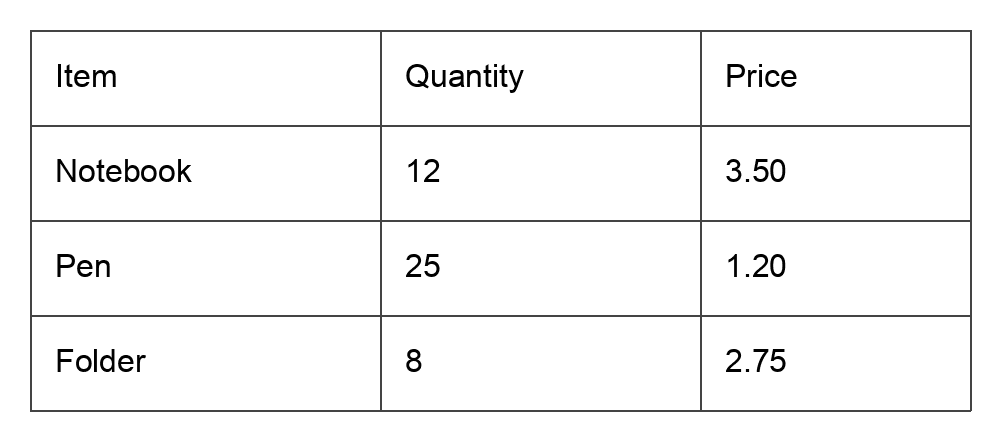
| Item | Quantity | Price |
|---|---|---|
| Notebook | 12 | 3.50 |
| Pen | 25 | 1.20 |
| Folder | 8 | 2.75 |
Select the same sample in the tool above to run it yourself. The borderless sample contains the same data without grid lines.
What to expect from table OCR
Excel and CSV output
JPG and PNG tables become editable cells. In XLSX, plain numbers are saved as numbers and everything else as text, so leading zeros and codes stay intact. CSV is handy for imports; check how your spreadsheet app reads dates and numbers.
Supported text
Reads simplified and traditional Chinese, English, Japanese and Latin-script languages such as French, German, Spanish and Portuguese. Korean, Arabic, Cyrillic and Hindi text are not supported by this model.
Review the structure
Clear printed tables work best. Borderless columns, merged cells, multiline cells, handwriting and tilted photos may need correction. Original formatting and merged cells are not preserved. Crop to one table before uploading; large images are resized for processing.
Use cases
Invoices and financial statements
Pull line items from an invoice, bill or statement image into Excel. Check decimal points, currency symbols and totals against the original before relying on the numbers.
Tables from papers and books
Screenshot a table in a PDF paper or scanned book to get the data into a spreadsheet for comparison. Keep the column headings, units and a note of the source.
Supplier price lists
Turn a price list image into Excel or CSV. Check product codes, quantities and unit prices before comparing suppliers or working out costs.
Tables photographed on a phone
Snap a printed table on paper or a notice board. Hold the phone parallel to the page, avoid glare and crop to a single table.
Tips for better results
Use a sharp image
Characters should stay readable when you zoom in. Avoid blur and heavy compression, and straighten tilted photos. Enlarging a blurry image does not bring back lost detail.
Capture the whole table
Make sure no rows or columns are cut off at the edges. For a very large table, photograph it in sections and convert each one separately.
Keep the lighting even
Avoid harsh direct light and shadows across the page. For scans, adjust the contrast so the text stands out clearly from the background.
Check cells before exporting
Compare row and column positions, decimal points, negative signs and leading zeros with the image. Edit text in the tool; correct missing or extra rows and columns in your spreadsheet.
Frequently asked questions
How do I convert a picture to Excel?
Upload the picture, extract the table and edit the cells. Download Excel (.xlsx) to open the result as a worksheet. For a CSV workflow, download CSV or copy the grid into your spreadsheet.
Does OCR confidence mean the table is correct?
No. The score describes the original text recognition, not row or column accuracy. It does not change when you edit cells. Always compare the structure and important values with the image.
Is my image uploaded? Does it work offline?
This tool processes the image in your browser. The first run needs an internet connection to download models (about 30 MB) plus runtime files. Later runs reuse loaded resources; offline availability depends on your browser cache and is not guaranteed.
Is it free, and what are the limits?
No account or payment is needed. Upload one JPG, PNG or WebP at a time, up to 10 MB. Performance depends on your device and image size. Complex layouts and unsupported scripts may not produce a usable table.
Which image formats can I convert to a table?
JPG, PNG and WebP images up to 10 MB, one image at a time. You can paste a screenshot directly with Ctrl+V or ⌘V. For a PDF, take a screenshot of the table first.
Which languages does table OCR support?
Reads simplified and traditional Chinese, English, Japanese and Latin-script languages such as French, German, Spanish and Portuguese. Korean, Arabic, Cyrillic and Hindi text are not supported by this model.
How can I improve table recognition accuracy?
Start with a sharp, straight image of a single table: individual characters should stay readable when you zoom in. Avoid blur, glare and heavy compression; enlarging a blurry image does not bring back lost detail. Crop away surrounding text so only the table is recognized.
Can it extract borderless tables and merged cells?
Borderless tables work when the columns are clearly separated; try the borderless sample above to see the result. Merged cells are not kept as merged, multiline cells may be split across rows, and formatting is not preserved, so compare the rows and columns with the image before exporting.
Can I convert a handwritten table to Excel?
This tool works best with printed text. Handwriting may be misread or omitted, so it is not a reliable substitute for manual transcription. Compare every handwritten value with the image and correct the result before exporting.
Can I extract a table from a PDF screenshot?
Yes. Take a clear screenshot of one table in the PDF, save it as PNG or JPG, and upload it here. PDF files cannot be uploaded directly to this tool. Keep all rows and columns visible; extract multiple tables separately.
How do I move the extracted table into Google Sheets?
After reviewing the cells, click “Copy for spreadsheet” and paste into Google Sheets, or import the downloaded XLSX or CSV file. Plain numbers in the XLSX are already numeric; still check dates, decimal separators and leading zeros after importing.
Related services
Next steps for the table you just extracted
Embed the table converter
Add the same browser-based tool to your website. The first run needs a connection to load its resources.
e.g., 100%, 800px
Minimum 600px recommended
<iframe
  src="https://doc2lang.com/embed/image-to-table"
  width="100%"
  height="800px"
  frameborder="0"
  allow="clipboard-read; clipboard-write"
  class="border border-gray-300 rounded-lg"
></iframe>
Usage Tips
- • Copy the code above and paste it into your website's HTML
- • The widget runs completely in the user's browser with full privacy
- • Customize width, height, and default language to match your needs