How to Translate an Excel File to English
Updated April 22, 2026
Overview
This guide walks you through translating an Excel (.xlsx / .xls) file from any source language into English using Doc2Lang. The whole process takes about a minute for a one-page spreadsheet, and the output keeps the original cell structure, formulas, and styling intact.
No sign-up is required to preview the translation — you only pay (or spend credits) once you're happy with the result.
What you'll need
- An Excel file — .xlsx, .xls, .xlsm, .xlsb, or .csv up to 50 MB
- A modern browser (Chrome, Safari, Edge, Firefox)
- No Doc2Lang account needed for one-off use (pay-as-you-go)
Step 1: Upload your Excel file
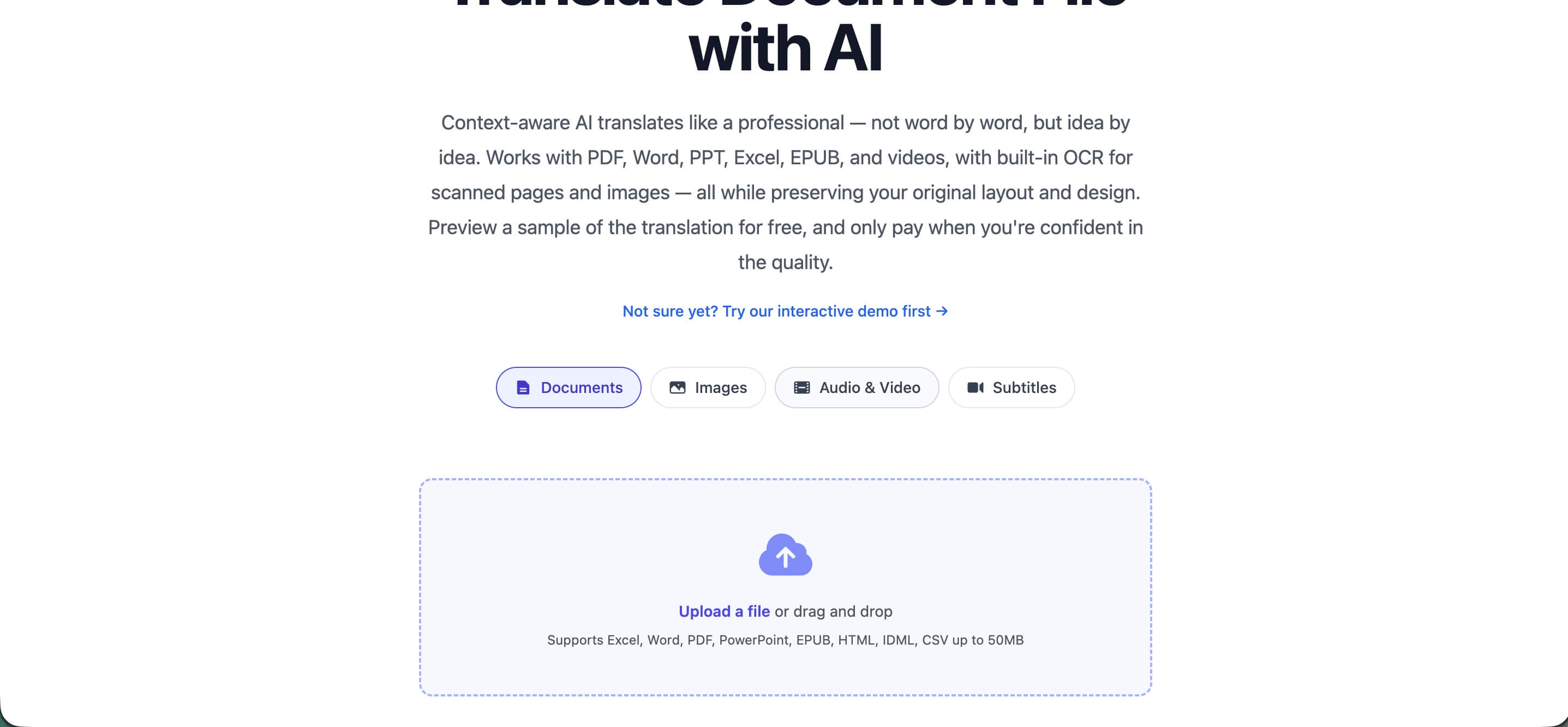
Go to the Doc2Lang homepage. Under the upload area, make sure Documents is selected (Excel, Word, PDF, PowerPoint, EPUB, HTML, IDML, CSV are all supported).
Click Upload a file or drag-and-drop your Excel file into the dashed box.
Step 2: Choose target language and translation style
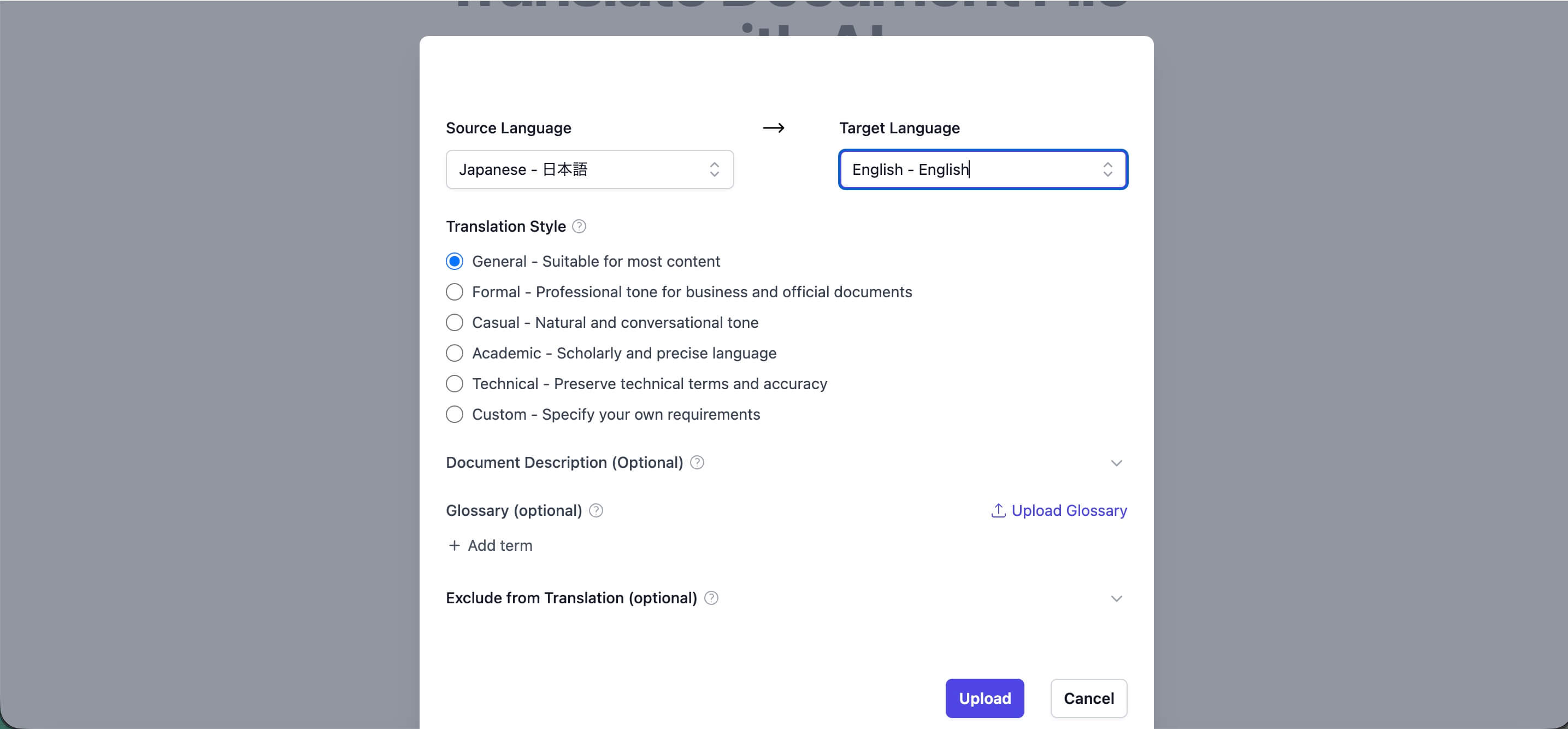
A settings dialog opens as soon as the file is uploaded.
- Source Language — leave it on auto-detect, or pick the original language manually (e.g. Japanese, Chinese, Korean).
- Target Language — select English – English.
Translation Style decides the tone of the English output:
- •General — Suitable for most content (default)
- •Formal — Business and official documents
- •Casual — Natural, conversational tone
- •Academic — Scholarly and precise
- •Technical — Preserves specialized terms
- •Custom — Describe your own requirements
Glossary (optional): If your spreadsheet uses product names, department names, or industry terms that must be translated in a specific way, add them under Glossary. You can add terms one by one or upload a CSV.
Exclude from Translation (optional): Use this to keep brand names, codes, SKUs, or column IDs exactly as they are.
Click Upload to start.
Step 3: Review the translation preview
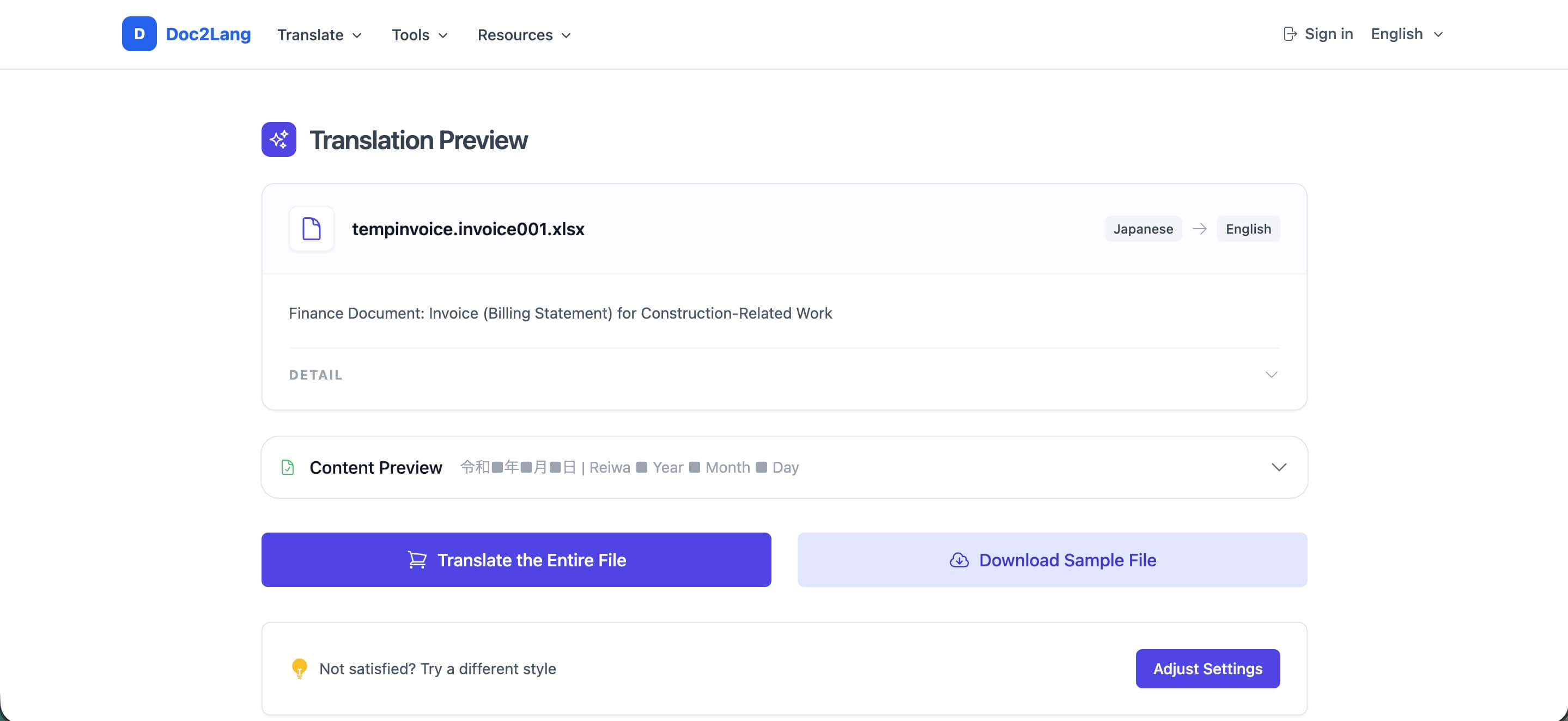
Doc2Lang auto-detects the document type (invoice, report, product list, etc.), runs a free sample translation, and shows a Translation Preview with the file name, detected category, and a live Content Preview.
Download Sample File:
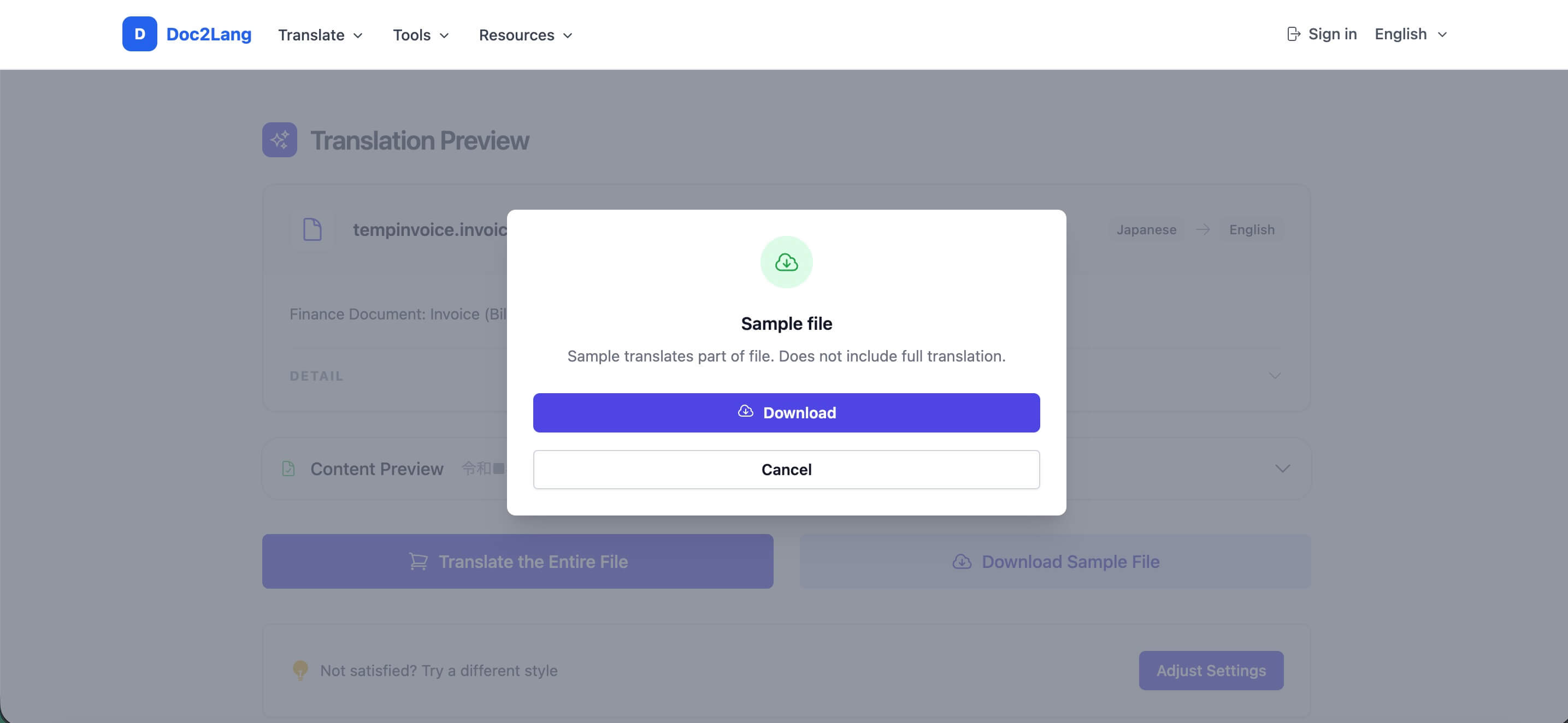
Downloads a partial version of the file so you can open it in Excel and inspect the formatting locally. The sample is free — it does not consume credits.
Translate the Entire File:
Runs the full translation on the complete spreadsheet. You'll be charged per token (pay-as-you-go) or have credits deducted.
Step 4: Adjust settings if needed
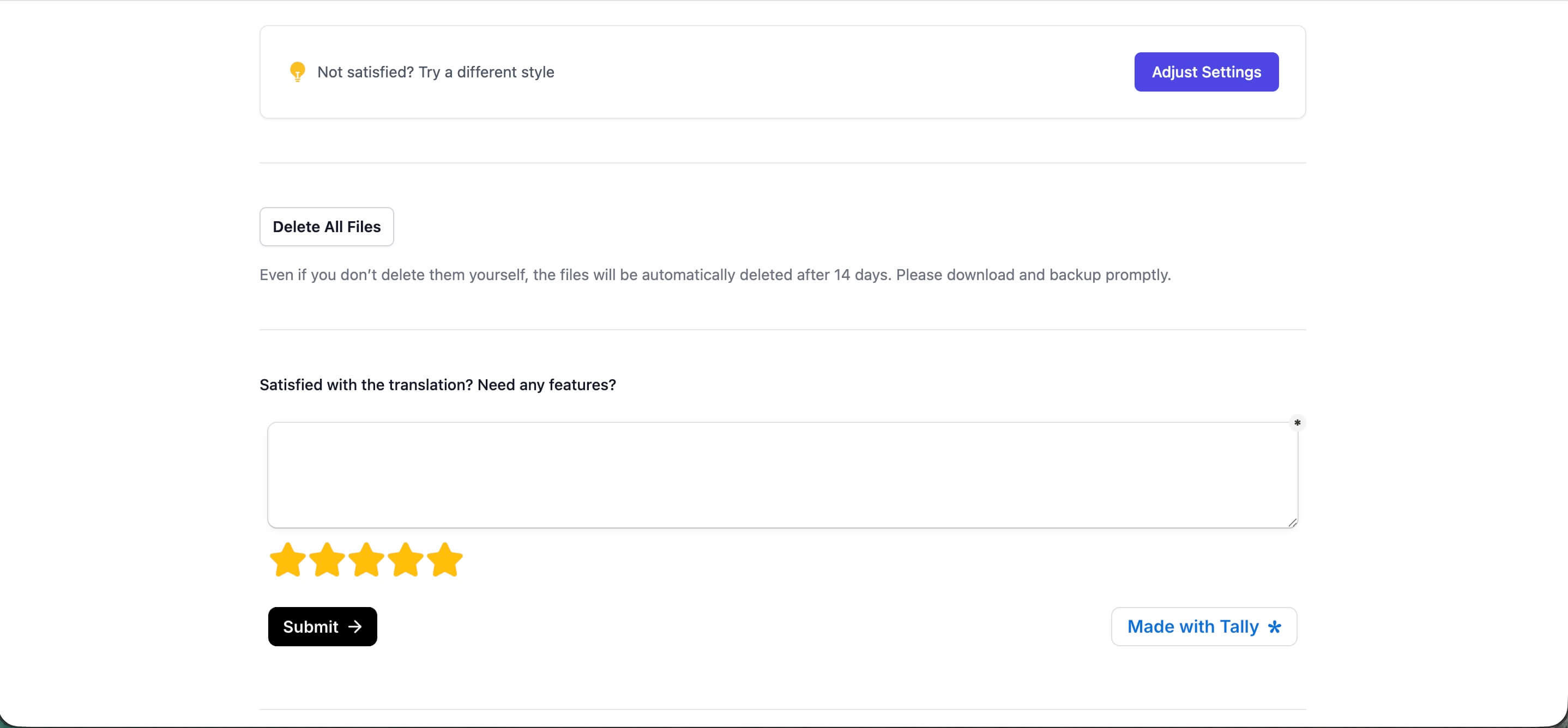
If the tone isn't right — for example the sample feels too stiff for a customer-facing sheet — click Adjust Settings and re-run. You can switch translation style, edit the glossary, or change the target variant without re-uploading.
Delete All Files: Removes both the original and translated files from the server immediately. Even if you don't click this, files are auto-deleted after 14 days — please download and back up your translated file promptly.
Step 5: Download the translated Excel file
Once the full translation completes, a download link appears. The file keeps the original .xlsx format so you can open it in Microsoft Excel, Google Sheets, or Numbers without any conversion. Formulas, merged cells, colors, and cell widths are preserved — only the text inside cells is translated.
Tips for better results
Use the glossary for repeated terms
For spreadsheets with many occurrences of the same product name, code, or department, a glossary guarantees consistent translation across all sheets.
Choose Technical style for engineering or finance data
If your spreadsheet contains engineering specs, financial reports, or medical data, the Technical style preserves industry terminology that General style may paraphrase.
Exclude non-translatable columns
SKU codes, serial numbers, dates, and URLs should go into Exclude from Translation so they stay untouched.
Download the sample first
The sample is free and gives you a real Excel file you can open. Use it to check that headings, units, and numbers render correctly before paying for the full file.
Back up the result within 14 days
Translated files are auto-deleted from Doc2Lang servers after 14 days. Save a copy to your own storage right after download.
Frequently asked questions
Will my formulas still work after translation?
Yes. Doc2Lang only translates the visible text in cells, headers, and sheet names. Formulas, cell references, and numeric values are left untouched.
Can I translate multiple sheets in one workbook?
Yes. All sheets inside the same .xlsx are translated in one go, and sheet tab names are translated too.
What source languages are supported?
Doc2Lang supports over 100 source languages, including Japanese, Chinese (Simplified & Traditional), Korean, German, French, Spanish, Italian, Portuguese, Russian, Arabic, Thai, and many more — all going to English.
How much does translating an Excel file cost?
Cost depends on the number of translation tokens (roughly proportional to the number of characters). Small spreadsheets may cost less than $1 with credits. See Credits vs Pay-as-You-Go for a full pricing breakdown.
Can I translate only part of an Excel file?
Yes — use the Download Sample File button on the preview page. It produces a partial translation so you can evaluate quality without paying for the full spreadsheet.
Is my data private?
Yes. All uploads use HTTPS, files are deleted after 14 days (or immediately if you click Delete), and OpenAI does not retain API data. See our Privacy & Data Handling guide for details.