How to Translate an EPUB eBook: Steps, Checks and Fixes
Translate a complete EPUB into another language, check that the result is complete and readable, open it on Apple Books, Kobo, Google Play Books or Kindle, and fix common problems.
To translate an EPUB and still read it as a book, translate the whole file rather than copying text out of it. The table of contents, chapters and formatting stay inside the file, and only the language changes. This guide shows what the result looks like, the steps, how to check the translated file, how to open it on your e-reader, and what to do when something goes wrong.
What the translated EPUB looks like
We translated O. Henry's public-domain short story “The Gift of the Magi” from English into Spanish as a complete EPUB file, with Doc2Lang's Lite model, and did not edit the result. Here is the same page of both files in the same reader, at the same font size.
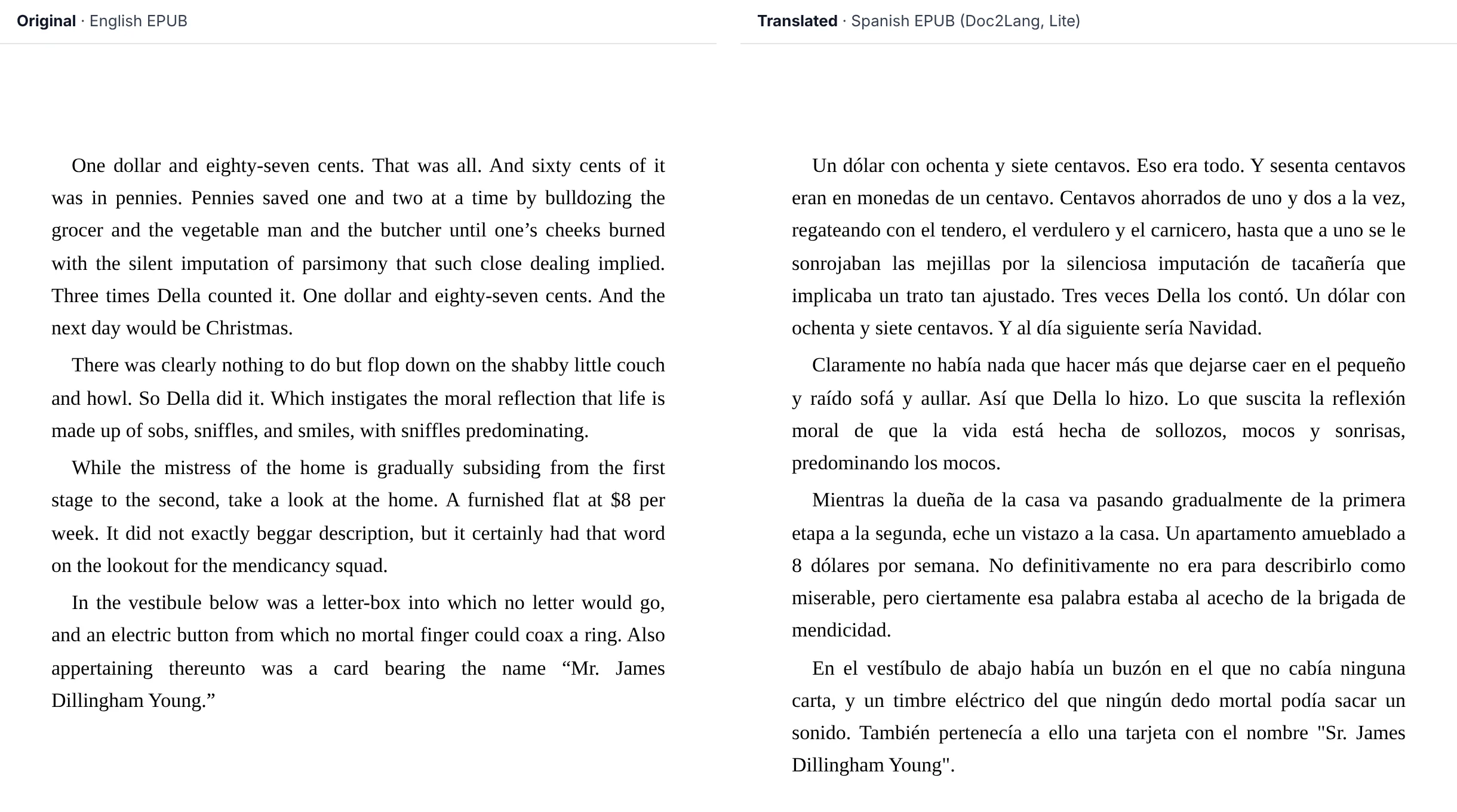
A passage from later in the story, as it appears in each file:
Original (English)
Jim stopped inside the door, as immovable as a setter at the scent of quail. His eyes were fixed upon Della, and there was an expression in them that she could not read, and it terrified her. It was not anger, nor surprise, nor disapproval, nor horror, nor any of the sentiments that she had been prepared for.
Translation (Spanish, Lite model)
Jim se detuvo dentro de la puerta, tan inmóvil como un perro de muestra ante el olor de una codorniz. Sus ojos estaban fijos en Della, y había en ellos una expresión que ella no podía descifrar, y que la aterrorizaba. No era ira, ni sorpresa, ni desaprobación, ni horror, ni ninguno de los sentimientos para los que se había preparado.
Download both files to compare them in your own reader:
This is a single short story. It shows the basic result, but it is not proof of how a long book with many chapters, footnotes or illustrations will turn out, so check those yourself with the steps in Check the translated file.
Quick steps
- Upload the EPUB to Doc2Lang's EPUB translator.
- Choose the source and target languages, the model (Pro or Lite) and a translation mode.
- Check the price and start the translation.
- Download the translated EPUB.
- Open it in your e-reader and check the table of contents, chapter openings and images.
Step-by-step walkthrough
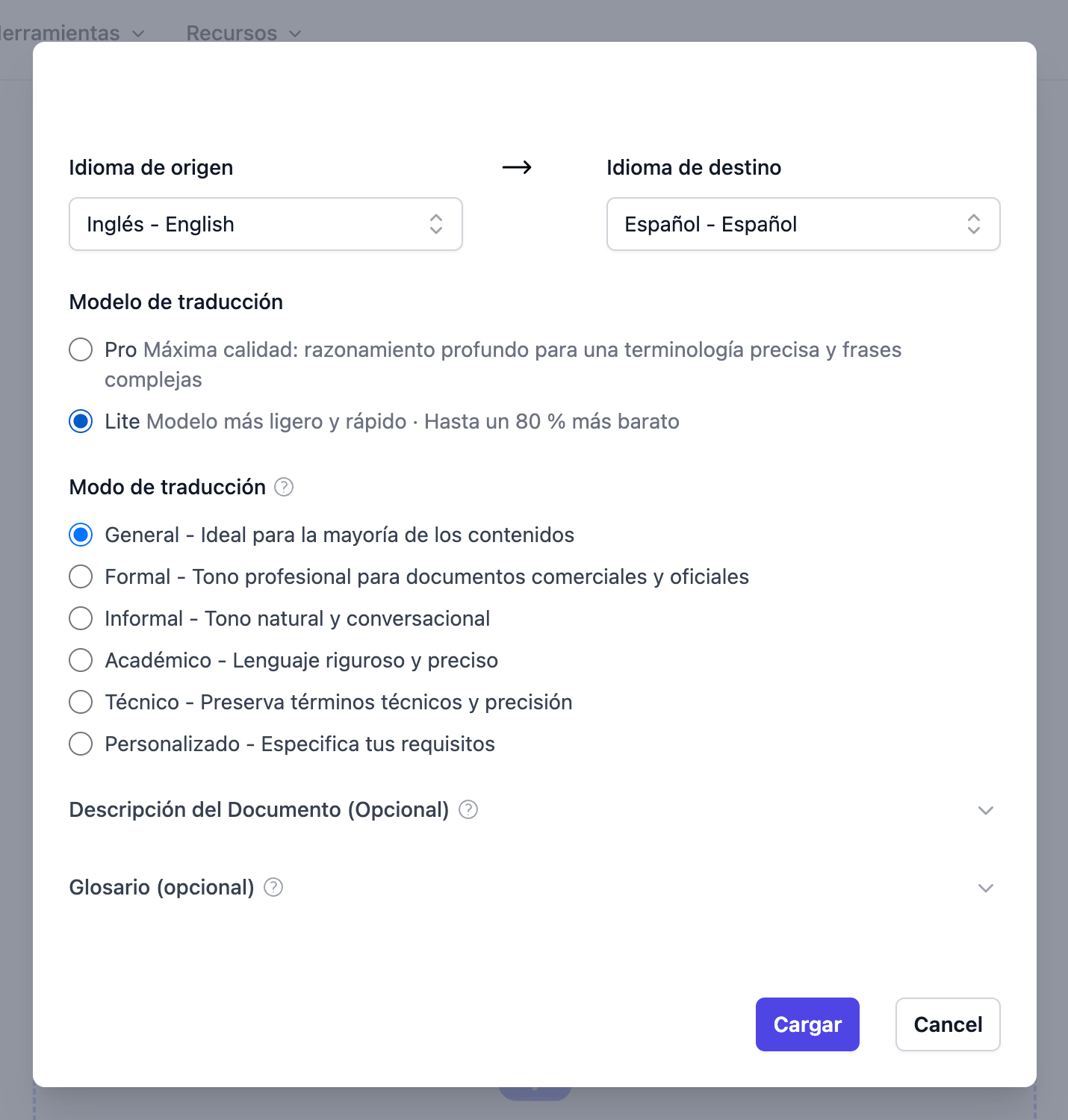
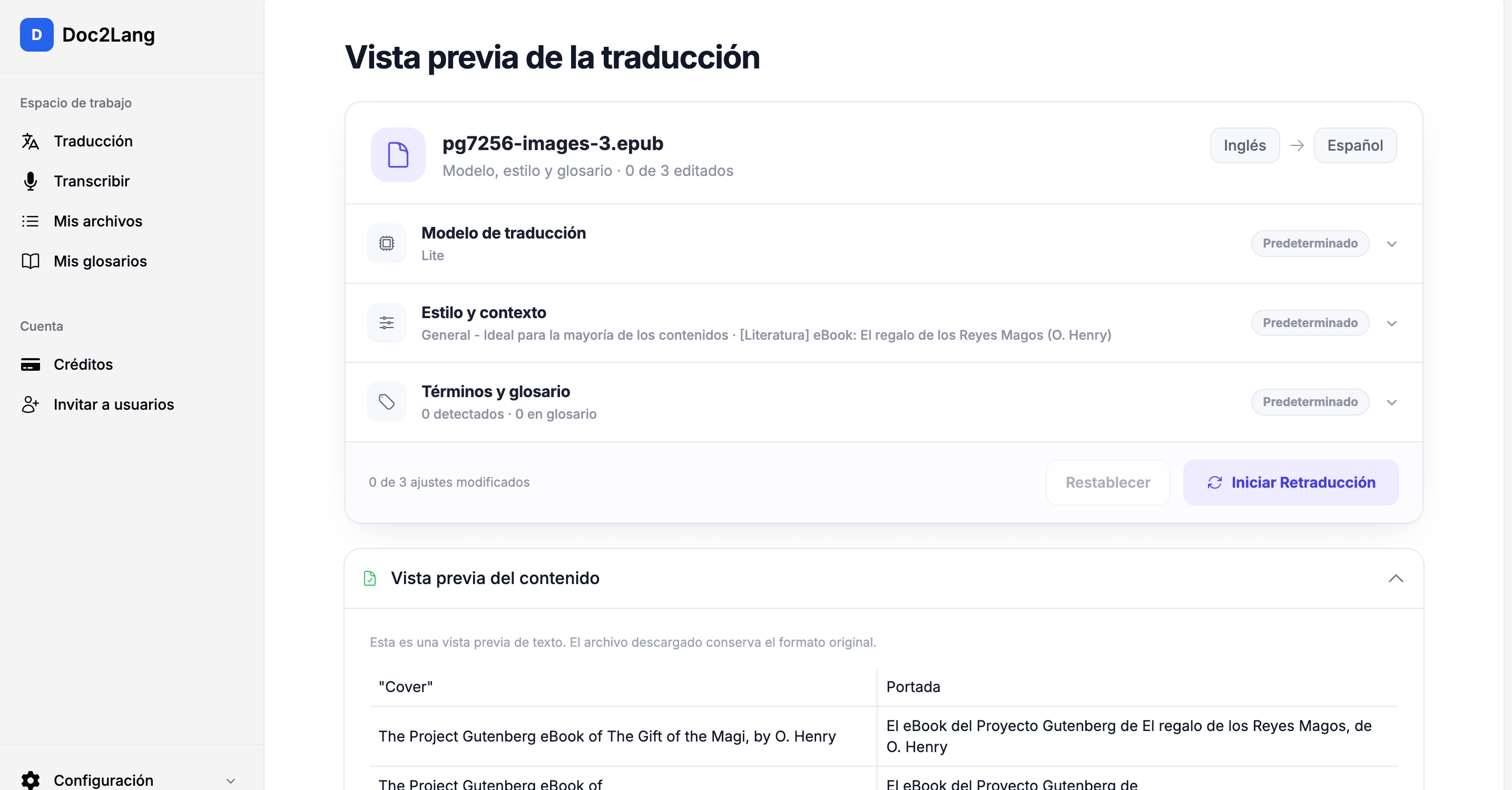
These screenshots come from the same English-to-Spanish sample. We ran it on the Spanish version of the site, so the interface appears in Spanish.
1. Upload the file and choose the settings
After you select the EPUB, choose the source and target languages. Translation works in either direction, so a Spanish book can be translated into English just as well. Then pick the model: Pro for the highest quality, or Lite, which is faster and cheaper. The translation mode, such as General, Formal or Informal, sets the tone. You can also add a short description of the book and a glossary for names and terms you want translated consistently.
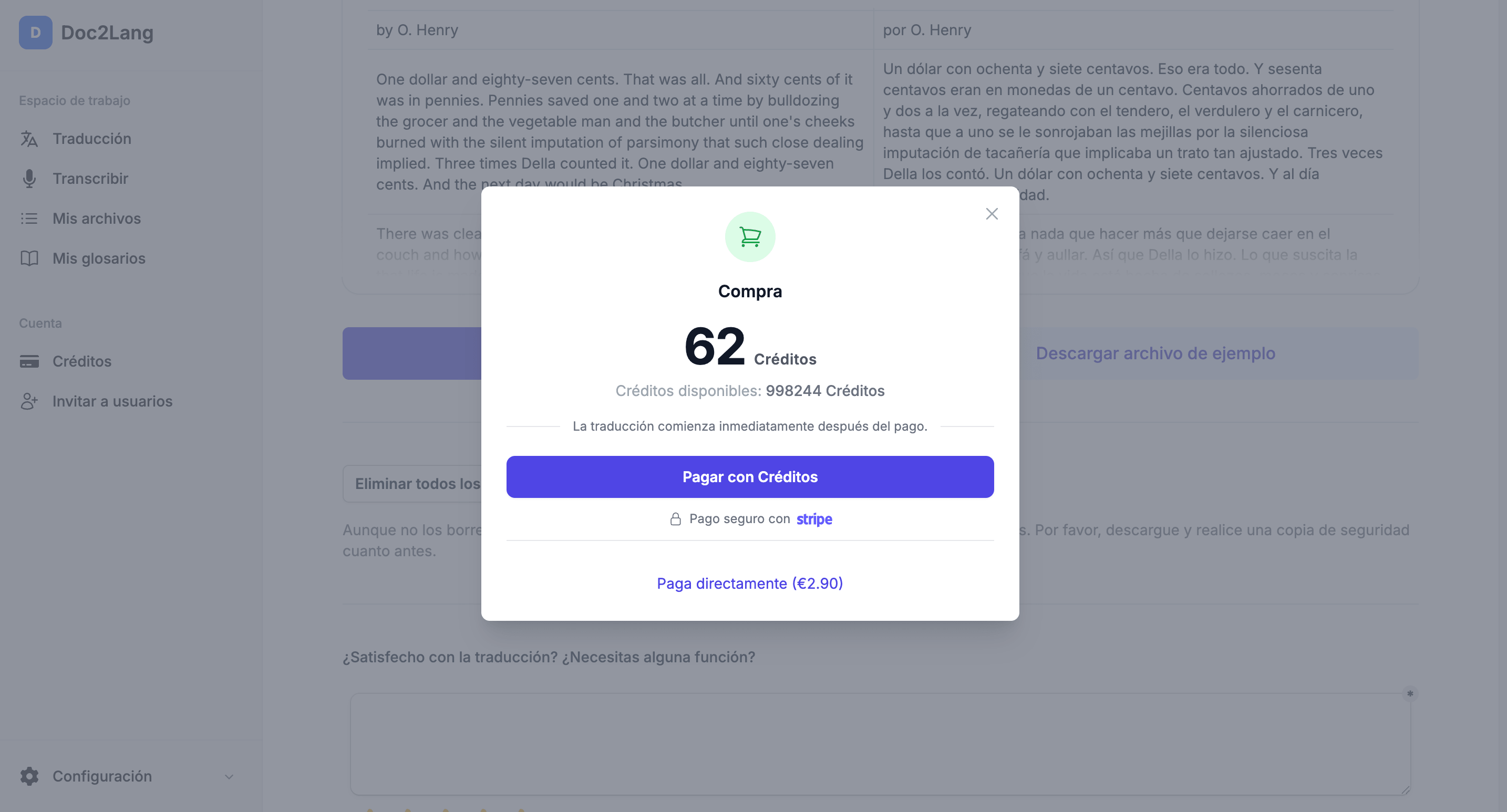
2. Check the price, then start
The price depends on the number of characters and is shown before the translation starts, so you can decide first. Payment is handled by Stripe.
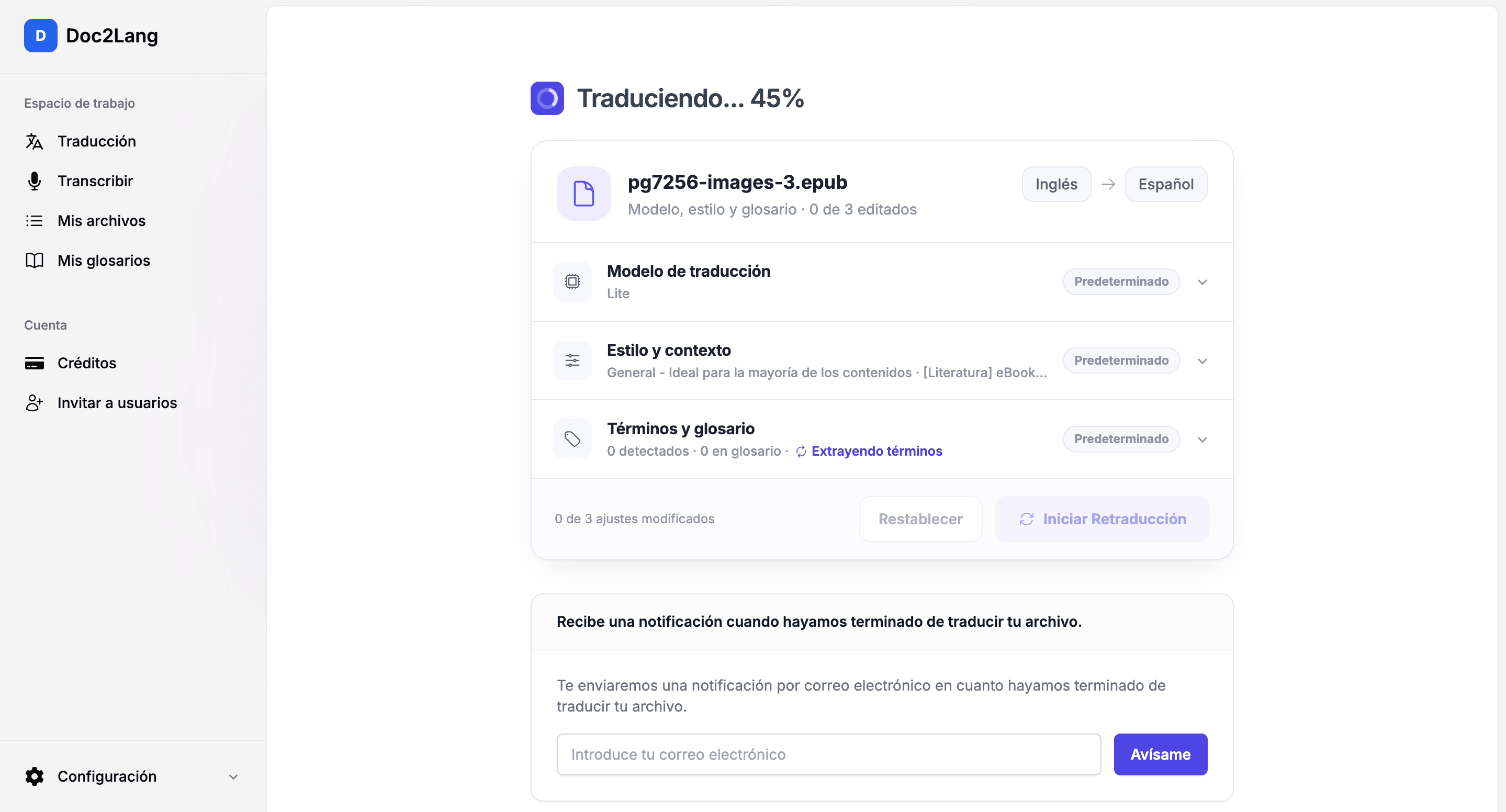
3. Wait, or leave your email
Long books take time. Add your email on the progress screen and you can close the page; you will be notified when the file is ready.
4. Review the preview and download
The preview lists the original and translated text side by side, so you can spot names or terms you want to change. Adjust the model, style or glossary and translate again if needed, then download the EPUB.
Check the translated file
Before you settle in to read, spend two minutes checking the file. These checks catch most problems:
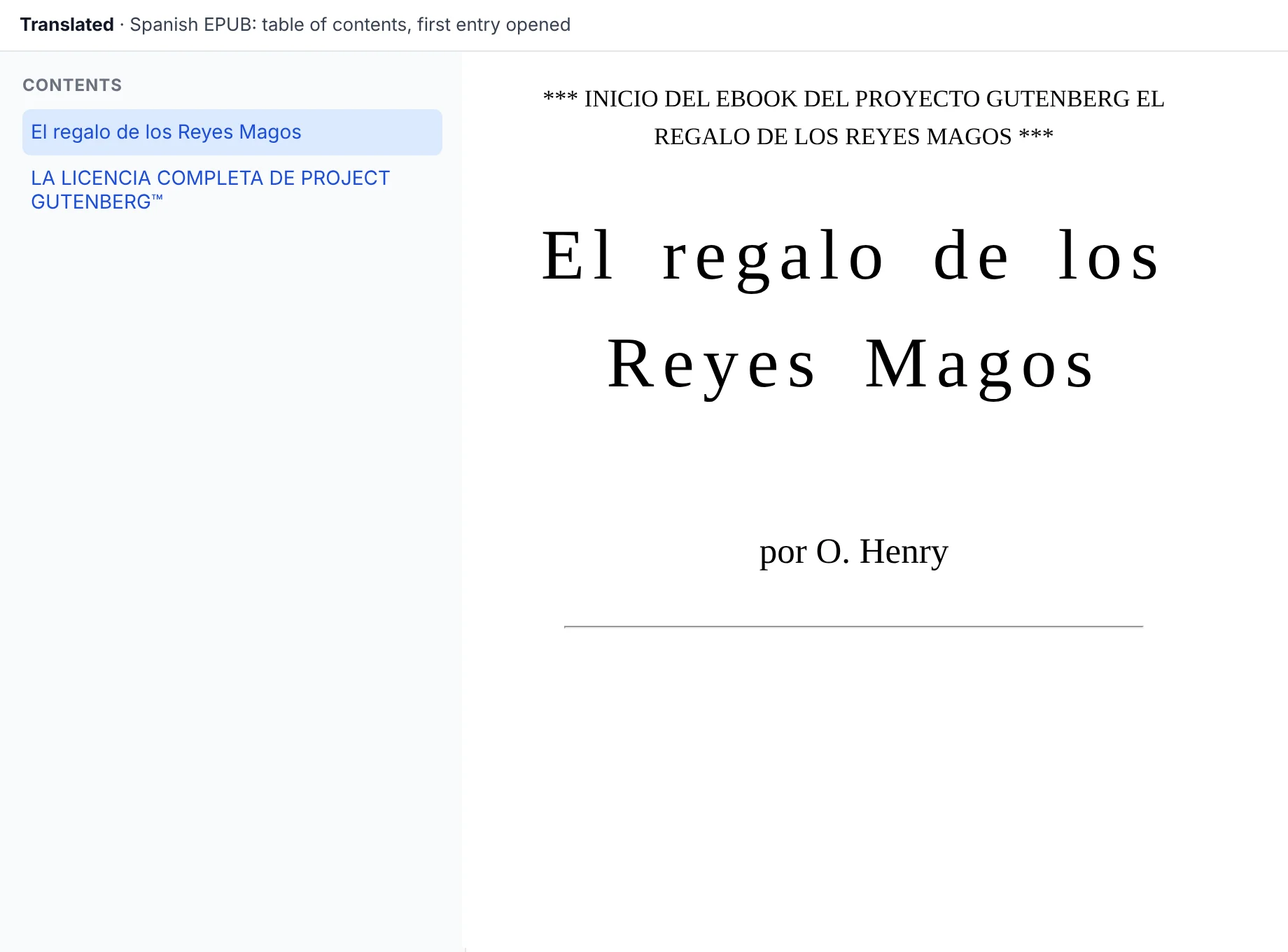
- Table of contents: open it and tap two or three entries. Each should jump to the right place.
- Chapter openings and endings: skim the first and last paragraph of a few chapters to make sure nothing is left in the original language.
- Paragraph count: if a chapter looks noticeably shorter than in the original, compare them side by side.
- Images: pictures stay in place, but text that is part of an image is not translated.
- Names and terms: if a name is translated inconsistently, add it to the glossary and translate again.
Here is what we found when we checked the Spanish sample:
| Check | Spanish sample |
|---|---|
| Paragraphs in the story | 45 of 45, none left in English |
| Table of contents (EPUB 3 navigation) | Translated; every entry jumps to the same place as in the original |
| Cover image | Kept |
| Italics and illustrations inside the text | Not tested: this story has none |
Open the translated EPUB on your e-reader
The translated file is a standard EPUB, so the main reading apps open it. Only the import step differs.
- Apple Books (iPhone, iPad, Mac): on a Mac, drag the file into Books. On iPhone or iPad, open the file from the Files app and choose to open it in Books.
- Kobo: copy the file to the device over USB, or add it through the Kobo app.
- Google Play Books: use Upload files in the app or on the web.
- Kindle: Kindle devices do not open EPUB files directly. Use Send to Kindle, which converts the EPUB so you can read it on your Kindle device or app.
Import steps change from time to time, so check each app's help if the screens look different.
Troubleshooting
The downloaded file won't open
Make sure the download finished and the file name ends in .epub. On a phone, find it in your Files or Downloads app and open it from there with your reader. If one app refuses it, try a second one, such as Apple Books or Calibre's viewer, to tell whether the problem is the file or the app. If it fails everywhere, contact support with the file.
The table of contents is in the original language or doesn't jump
An EPUB can contain two tables of contents: the EPUB 3 navigation and an older toc.ncx file. Reading apps use one or the other. If chapter names appear in the original language, your app is probably reading the older one. If entries don't jump at all, remove the book from the app, import it again, and try another reader to check whether the file or the app is at fault.
Some passages are still in the original language
First check whether the text is part of an image, which is not translated. If ordinary text was skipped, note the chapter and contact support. For an important book, compare the beginning and end of each chapter with the original before you start reading.
Text inside pictures wasn't translated
That is expected. The translation works on the book's text; images, including any words drawn into them, stay as they were.
Send to Kindle fails
Check that you are sending the .epub file itself and that it opens in another reader. Then follow Amazon's Send to Kindle troubleshooting guide, which lists the supported formats, size limits and error messages.
The file is rejected before translation
Most e-books bought from stores such as the Kindle Store or Apple Books are protected by DRM, and protected files cannot be translated. See the note on DRM below.
Other ways to translate an EPUB, and their limits
Whole-file translation is the most comfortable way to read a complete book, but two other methods are worth knowing:
- Copy and paste into a translation app. Free and instant for a few pages, but you get plain text with no chapters or table of contents, and it is impractical for a whole book.
- Calibre with a plugin. Calibre is a free, open-source e-book manager, and the free Ebook Translator plugin adds a Translate Book button. It supports engines such as Google Translate, ChatGPT, Gemini and DeepL and places each translated paragraph after the original, which suits language learners. You install and configure it yourself, and depending on the engine you may need your own API key.
DRM: which books you can translate
DRM-protected files cannot be opened by translation tools, and removing DRM may break the law in your country and the terms of the store you bought from. Translate only public-domain books, DRM-free e-books, or your own writing. Project Gutenberg offers tens of thousands of free public-domain EPUBs, which makes it a good place to find a first book to try.
The same story is also available in other languages, all translated with the Lite model and unedited:
French,
German,
Portuguese,
Japanese,
Korean and
Chinese.
Read the book you want, in the language you want.
Translate your EPUB with its layout intact, and check the price and preview before you pay.