Translate an Excel Financial Report into Any Language with AI (Charts, Formulas and Layout Intact)
See how to translate an Excel file into French, German, Spanish, Japanese, Korean and 100+ more languages with Doc2Lang, keeping the layout, formulas and charts, step by step with screenshots.
Key takeaways
- Doc2Lang translates an Excel file with its layout, formulas and charts intact: only the text inside the cells changes.
- Using one English financial report (income statement, balance sheet, assumptions), we follow the whole flow: upload, free preview, terminology, download, and show the same file in several languages.
SUM()formulas and the three charts are preserved (41 formulas in the income statement, 27 in the balance sheet); the company name stays unchanged and only the sheet tab names stay in English.- Pricing is pay-as-you-go based on the amount of text, not the number of pages or cells. The preview is free and needs no account.
No account needed, preview is free
The hard part of translating an Excel file isn't the text in the cells, it's everything around it. Paste a table into a generic translator and the merged cells and borders break, the totals built with SUM() disappear, and the charts turn into flat images. On top of that, a phrase like "Gross margin" often becomes a literal translation instead of the correct accounting term.
Doc2Lang translates inside the file itself, so the layout, formulas and charts stay intact and only the text in the cells and charts changes language. In this guide we take one English financial report (Excel) and follow the whole journey from upload to download, with screenshots, then show the exact same report rendered in several languages. The same method works for most Excel files: quotes, price lists, inventory sheets or technical specifications.
The file we'll translate
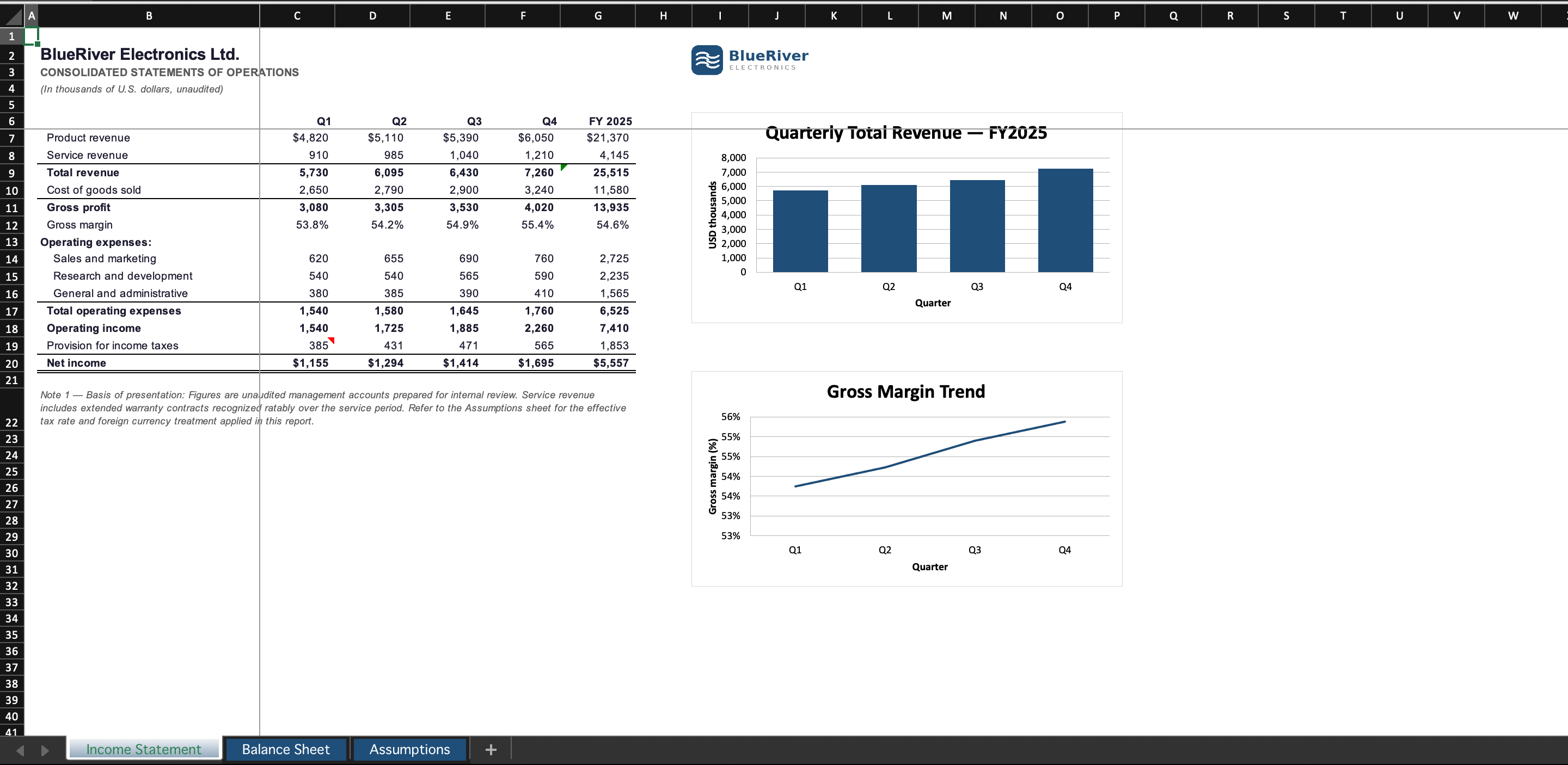
We start from the annual consolidated financial statements (.xlsx) of a fictional company, "BlueRiver Electronics Ltd." The file deliberately packs in everything that tends to break during translation. It has three sheets:
- Income Statement: quarterly results, total rows calculated with
SUM(), a revenue bar chart and a gross-margin line chart. - Balance Sheet: assets, liabilities and equity with their share of the total, plus a pie chart.
- Assumptions: tax rate, growth and exchange-rate inputs.
To try it yourself, download the English sample report (.xlsx) and follow along. Here is the English income statement before translation, the file we start from.
Step 1: Upload and choose your target language
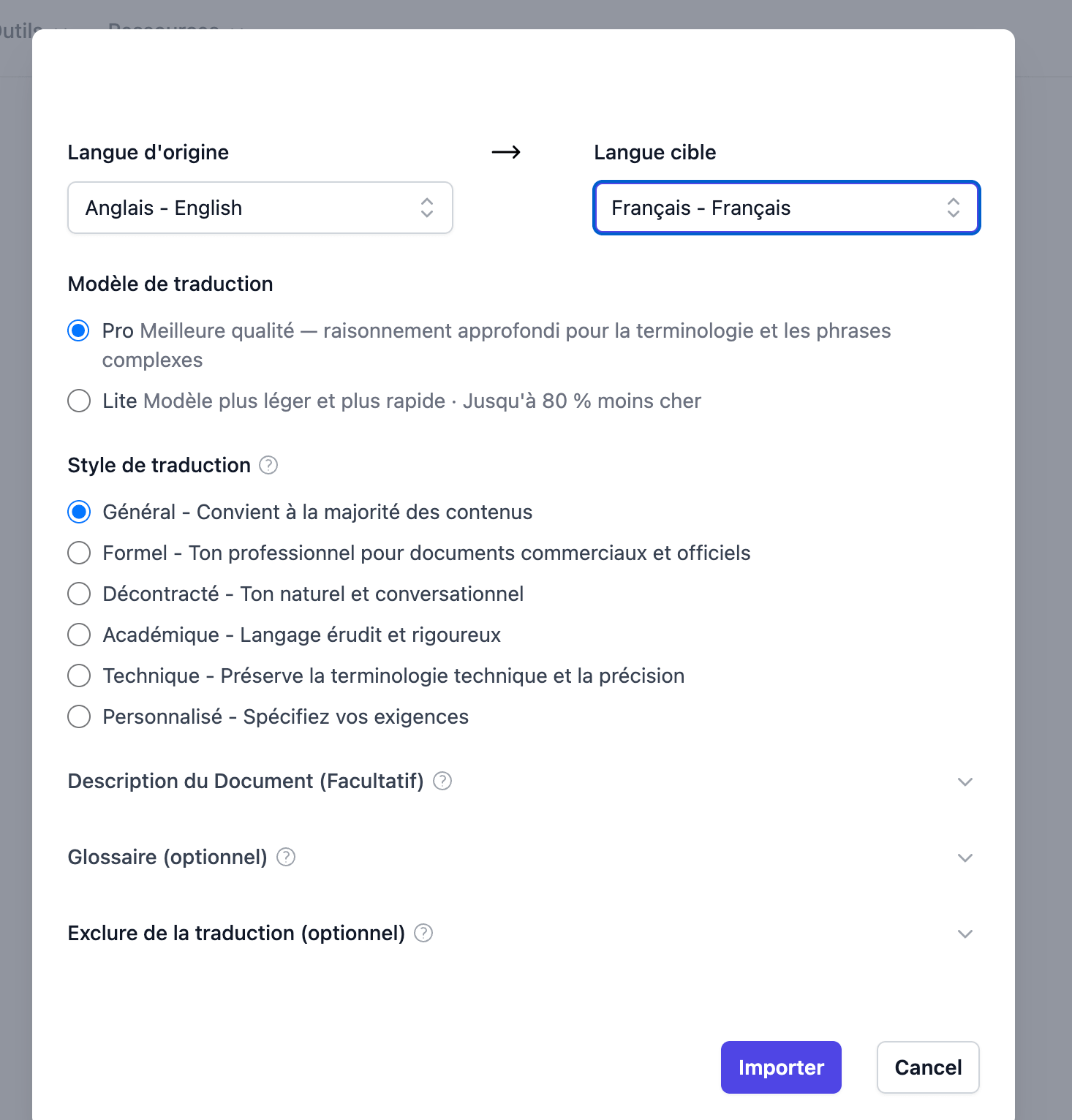
Drag and drop your file into the Excel translation tool and the settings dialog opens. Set the source language to English and pick your target language. Doc2Lang supports over 100 languages, so this same report can go to French, German, Spanish, Italian, Portuguese, Japanese, Korean, Chinese and many more. Choose the Pro model for the best quality.
The "General" style is fine in most cases, but describing the document improves the terminology. We put "consolidated financial report: revenue and income statement" in the context field. A single word about the domain (accounting, legal, technical) is enough to steer the translation.
Step 2: Check the translation in the free preview
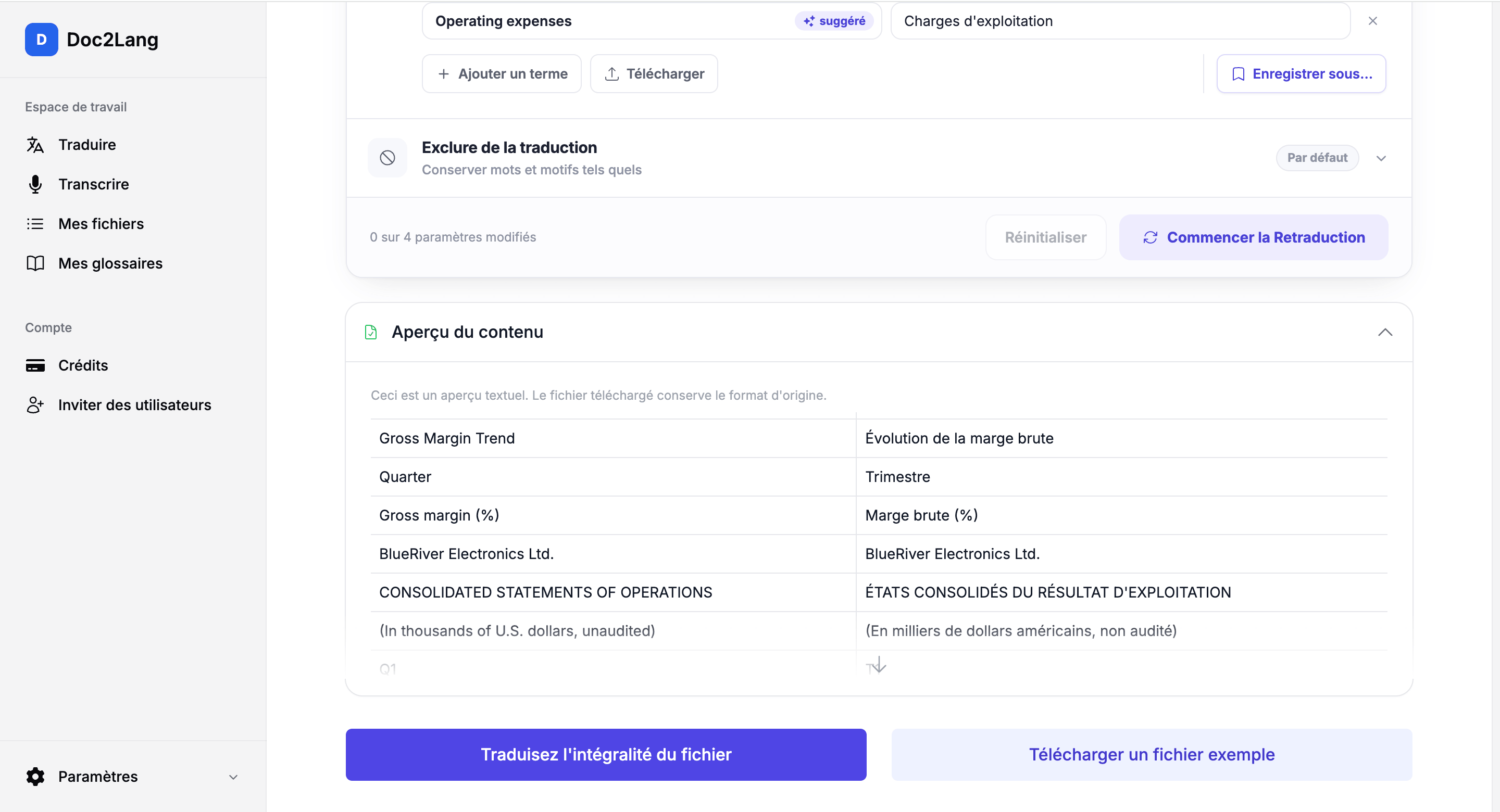
Before any payment, Doc2Lang translates part of the file for free, with English on the left and the target language on the right so you can confirm the result up front. At upload it also detects the key terms automatically (for example "Operating expenses") and proposes a translation you can adjust. Those terms are then applied consistently across the whole document and its charts. If you translate reports regularly, set up a glossary to keep your terminology consistent so labels stay stable from one period to the next.
Step 3: Download the same report, now in any language
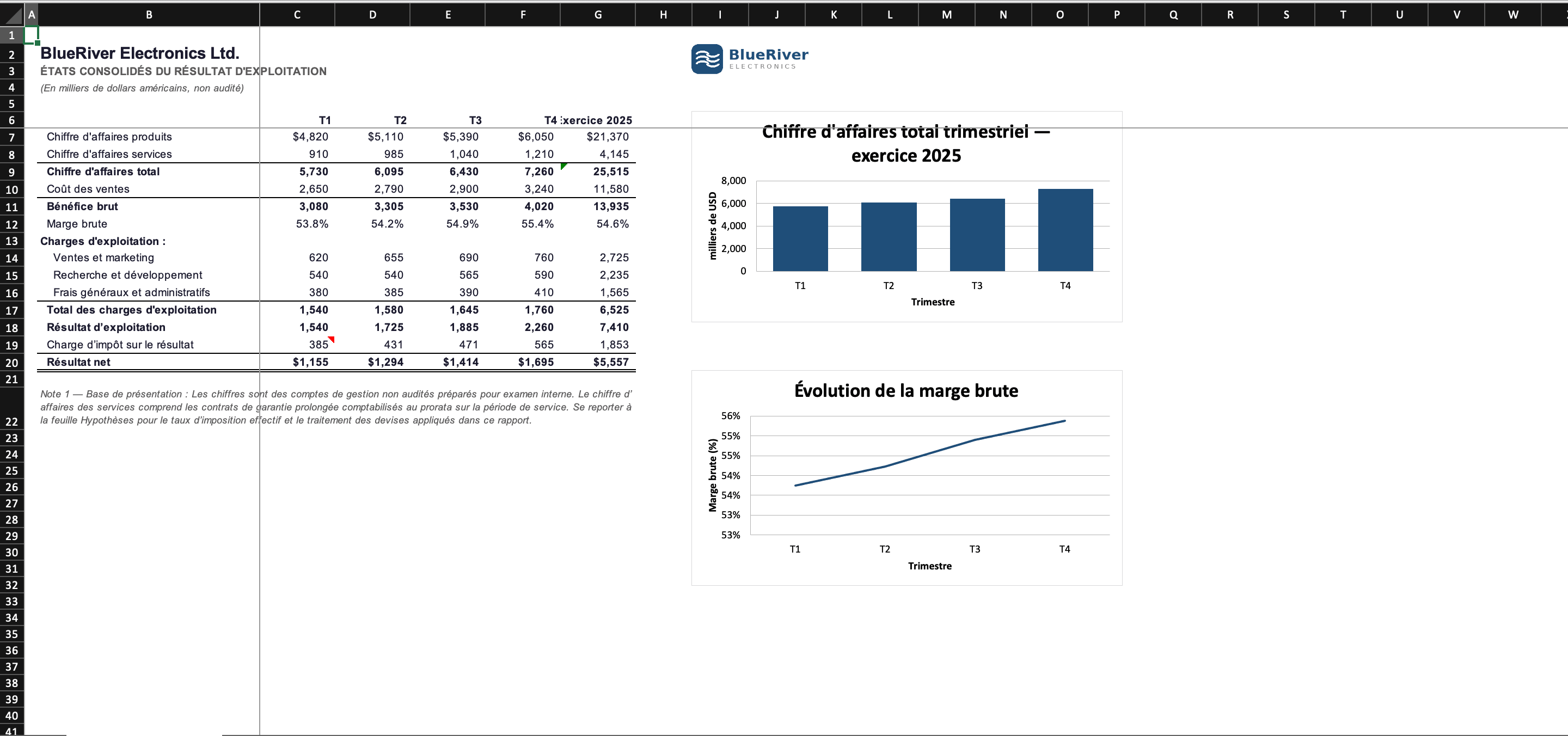
Click "Translate the whole file", let it process, then download the .xlsx. The downloaded file keeps the column widths, borders, thousands separators, charts and sheet structure. The lines become real accounting terms rather than literal translations, and the formulas stay live: the SUM() cells still point to the same ranges as the original (41 in the income statement, 27 in the balance sheet), so changing a number recalculates the totals. The three charts are not flattened into images either: they stay native Excel charts, and only the titles, axes and legends change language. Amounts keep their currency symbol and separators (like $4,820), and the company name "BlueRiver Electronics Ltd." stays unchanged.
Here is the same income statement sheet, translated into five different languages. Notice how the layout, the two charts and the numbers are identical every time, only the language changes.
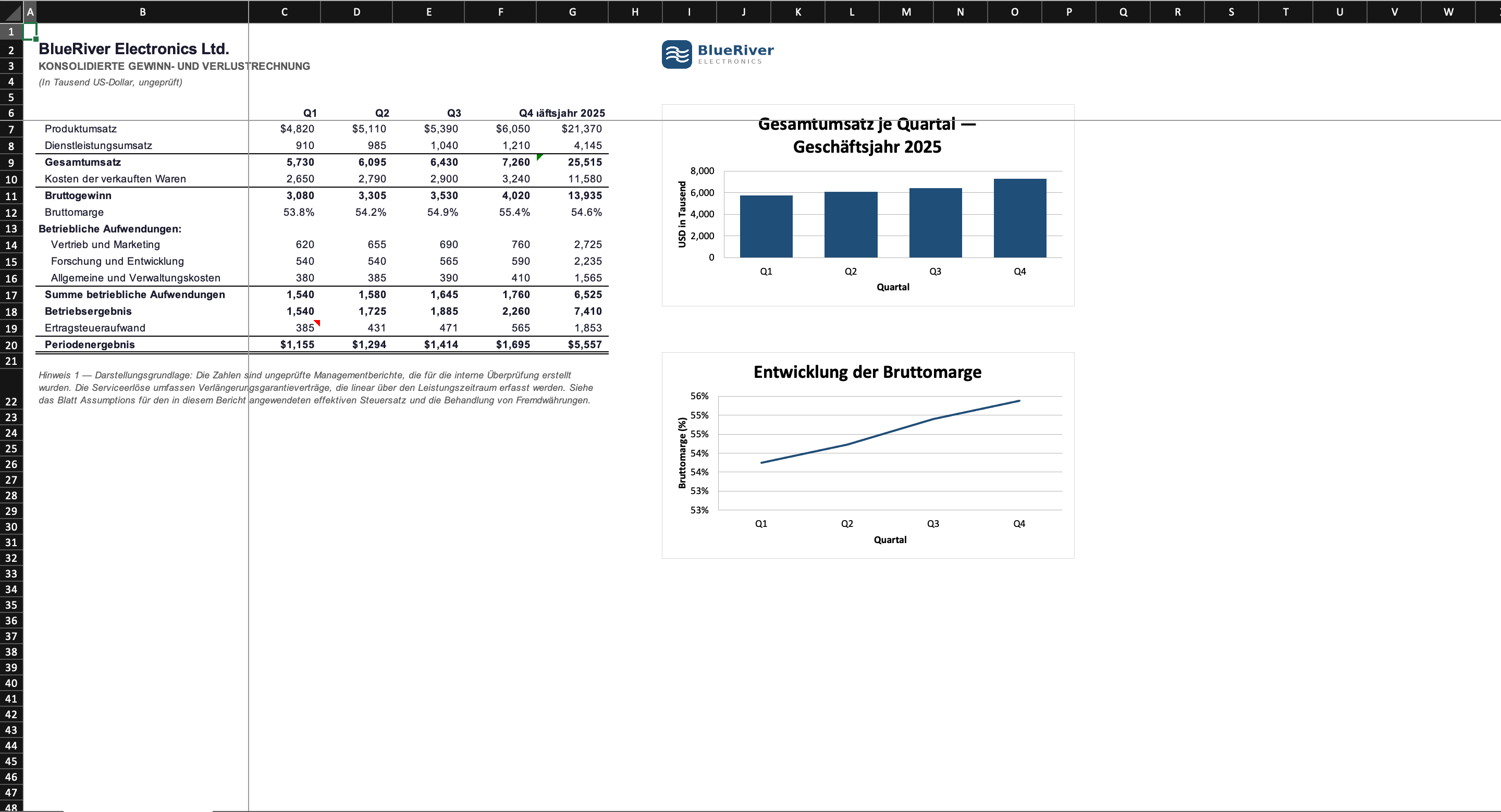
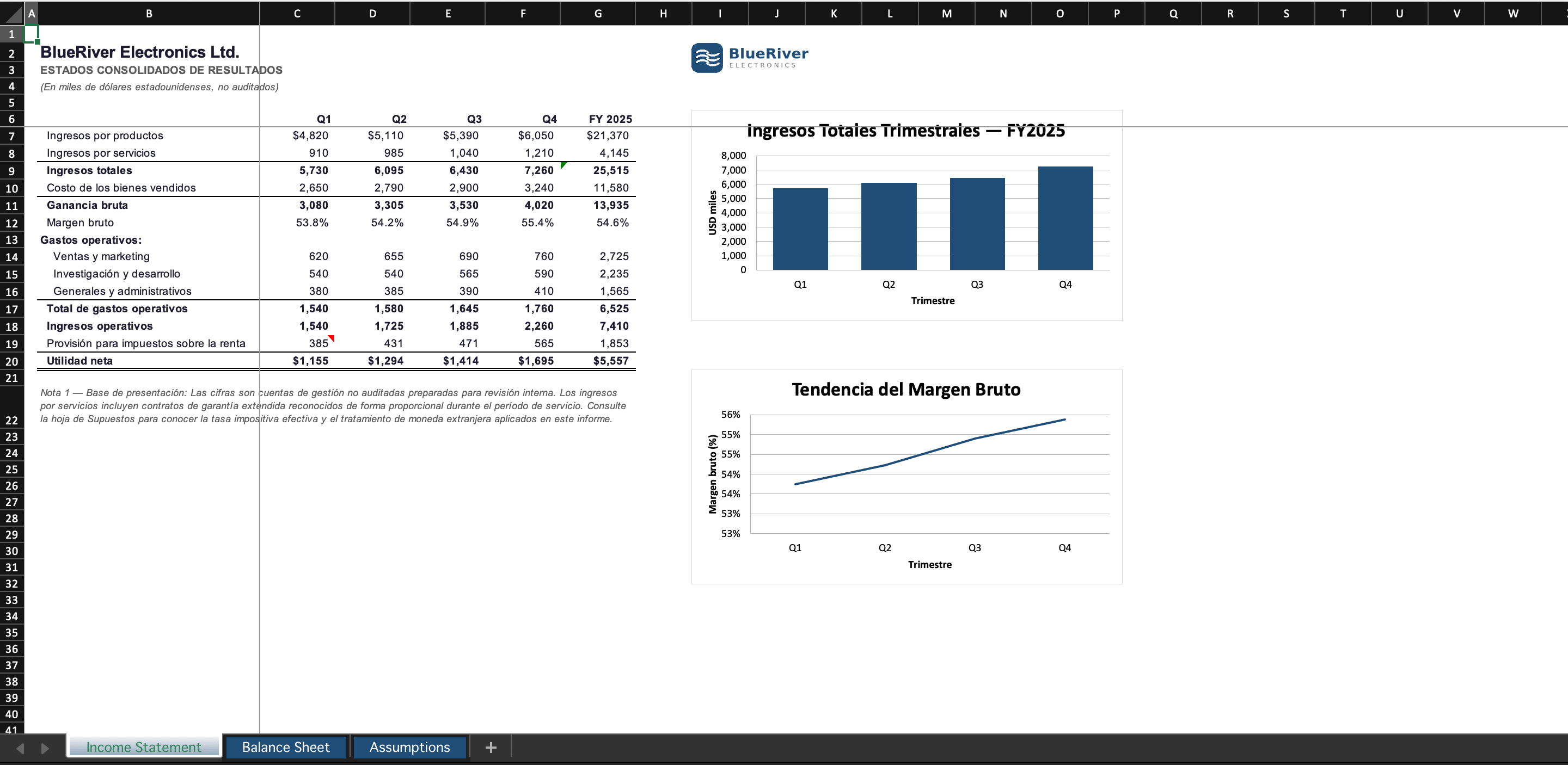
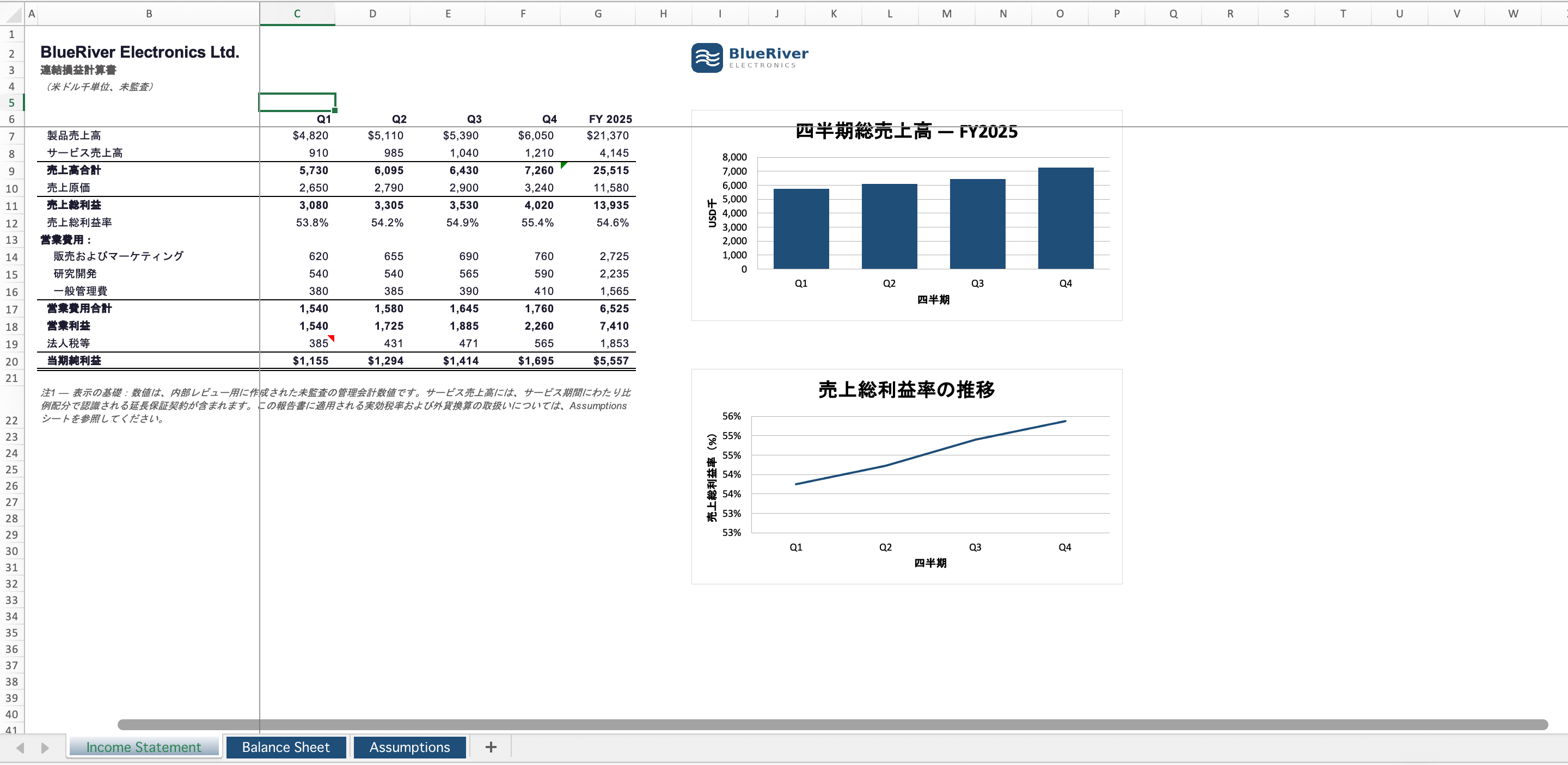
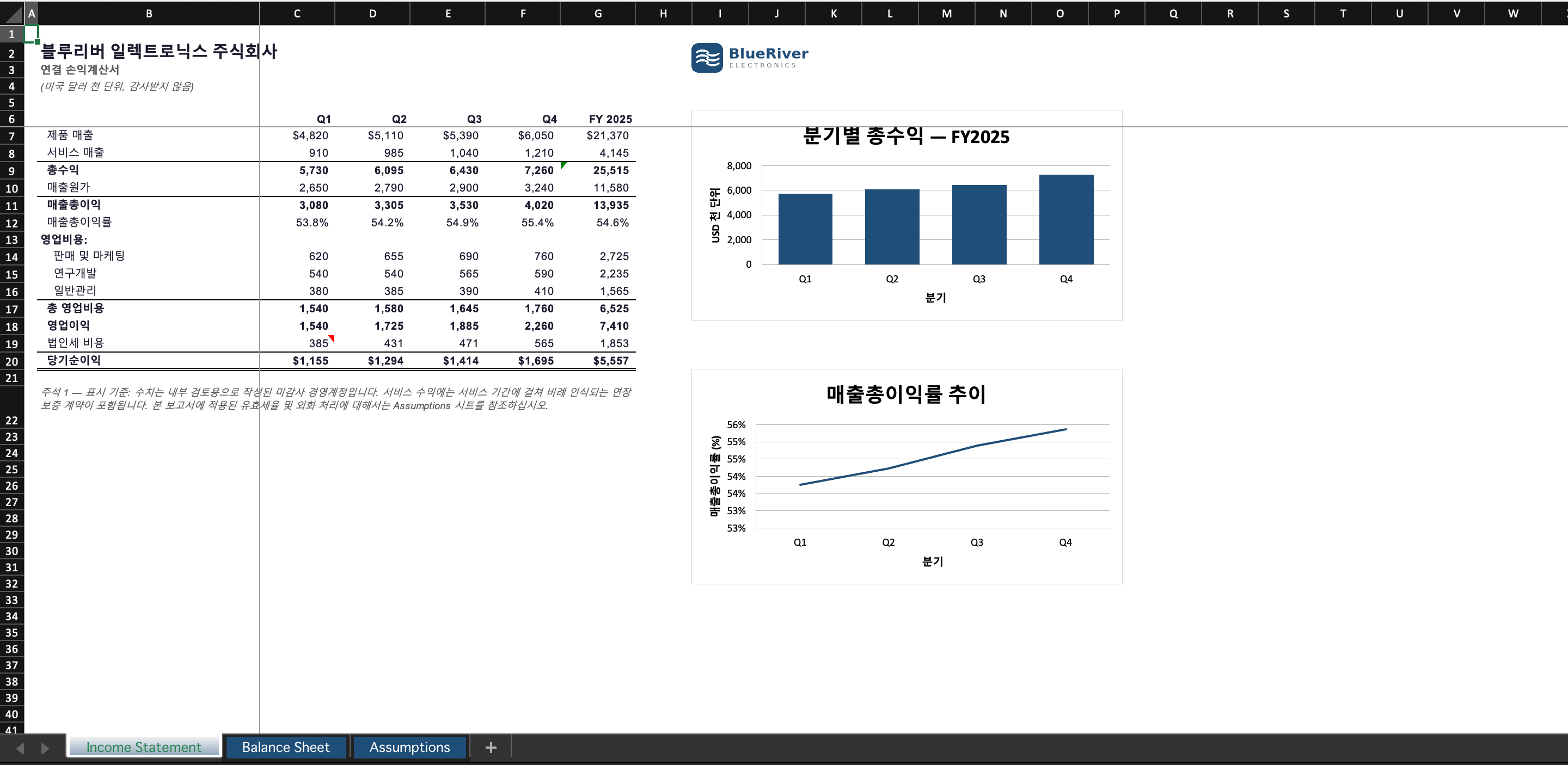
One thing to keep in mind: the sheet tab names at the bottom (Income Statement / Balance Sheet / Assumptions) stay in English. The text in the cells, charts and notes is translated, so if you also want the tabs in your language, rename them by hand after downloading.
Into 100+ languages, layout kept intact
Download and auto-delete
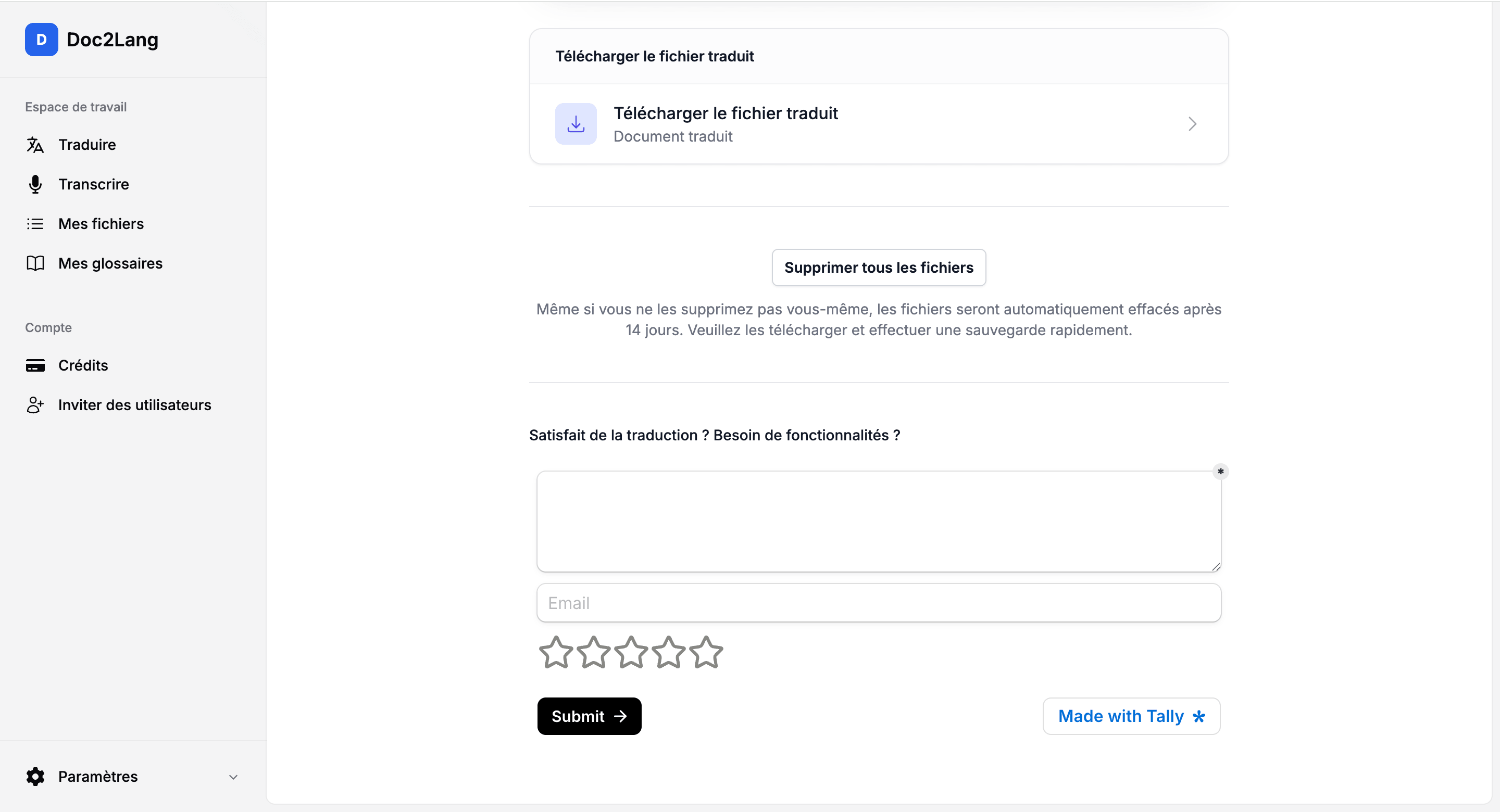
Your translated file stays available to download and is deleted automatically after 14 days (you can also delete it yourself right away). Even for a confidential document like financial statements, your data does not linger on the server.
Wrapping up
An English Excel financial report can be translated into any language in a few steps, upload, pick the language and model, preview for free, adjust the terminology, and download, all while keeping the layout, formulas and charts. To go deeper on statements, see the guide to translating financial statements.
Going the other way, if a supplier sends you a spreadsheet in German or Japanese, see what survives when you translate an Excel file into English: formulas and merged cells held, but sheet tabs and date formats did not.
Start with your own file and translate an Excel file online: the preview is free and needs no account.
Frequently asked questions
Are the formulas and charts preserved?
Yes. The SUM() formulas keep the same reference ranges, the charts stay native Excel charts, and only the axes and legends change language. After downloading, everything is still recalculable and editable.
Could company names or account codes be translated by mistake?
The company name and codes stay unchanged by default. To lock a specific term, save it in the glossary and it will be applied consistently across the whole document.
Are the sheet tab names translated?
For now the text in the cells, charts and notes is translated, but the sheet tab names (Income Statement, etc.) stay in English. Rename them by hand after downloading if needed.
Which file formats are supported?
Excel (.xlsx), as well as Word, PowerPoint, PDF (including scanned PDFs via OCR) and more.
Is it free?
The preview is free and needs no account. You only pay when you download the full translation, pay-as-you-go and with no subscription.
Which languages can I translate into?
Over 100 languages, including French, German, Spanish, Italian, Portuguese, Japanese, Korean and Chinese.
How much does it cost to translate an Excel file?
Pricing is pay-as-you-go: the cost depends on the amount of text to translate, not the number of pages or cells. The preview is free, so you can check the volume and the result before paying.
The financial statements used here are fictional. The company name, figures and logo are invented and serve only to illustrate how the translation behaves.