Interactive PDF & Subtitle Translator Demo: See Format-Preserving Translation in Action
Try our AI PDF translator and subtitle translator with no signup. See how Doc2Lang preserves fonts, tables, layouts, and timing codes across 100+ languages.
Published April 8, 2026 · 8 min read · By the Doc2Lang Team
TL;DR
We launched an interactive translation demo at doc2lang.com where you can test our AI PDF translator and AI subtitle translator without uploading anything or signing up. Pick a sample document, choose from 100+ target languages, and inspect the translation side by side with the original — including how fonts, tables, layouts, and timing codes are retained in the sample output. This post explains why we built it, how format-preserving document translation actually works under the hood, and what's coming next.
Jump to:
- The State of Online PDF Translation in 2026
- Why We Built an Interactive Demo
- How Doc2Lang's PDF Translation Preserves Formatting
- The Demo Flow: Three Clicks to "Wow"
- How Doc2Lang's Subtitle Translation Preserves Timing Codes
- Try the Doc2Lang Demo
- What's Coming Next
- Frequently Asked Questions
The State of Online PDF Translation in 2026
Search "translate PDF online" on Google and you'll get dozens of results. Search "translate PDF to Japanese" or "translate SRT subtitles" and you'll get dozens more. Most of them work like this:
- Upload your file
- Wait
- Receive a flattened mess of plain text with no formatting
- Spend two hours rebuilding the layout in Word
This is the dirty secret of AI document translation: the translation part is mostly solved, but the format preservation part is not. Large language models like GPT-4 and Claude can translate between languages with near-human accuracy. The hard part isn't the words — it's keeping the document structure intact while you swap them out.
A typical PDF contains:
- Text positioned at exact x/y coordinates
- Fonts that may not have equivalents in the target language
- Tables built from invisible grid lines and aligned text boxes
- Images with embedded captions
- Multi-column layouts with reading order metadata
- Headers, footers, page numbers, footnotes
- Vector graphics, charts, and inline math
When a naive PDF translator extracts text, sends it to a translation API, and stitches it back, all of that structure gets lost. Worse, translated text is almost always a different length than the original — Japanese is roughly 60% the length of English, German is roughly 130% — so even if you preserve coordinates, the text overflows or leaves gaps.
This is the problem Doc2Lang has been solving for the past two years. And the demo we just launched is the first time visitors can see the solution working in real time, without committing to anything.
Why We Built an Interactive Demo (And Why You Should Too)
Doc2Lang's old landing page looked like this:
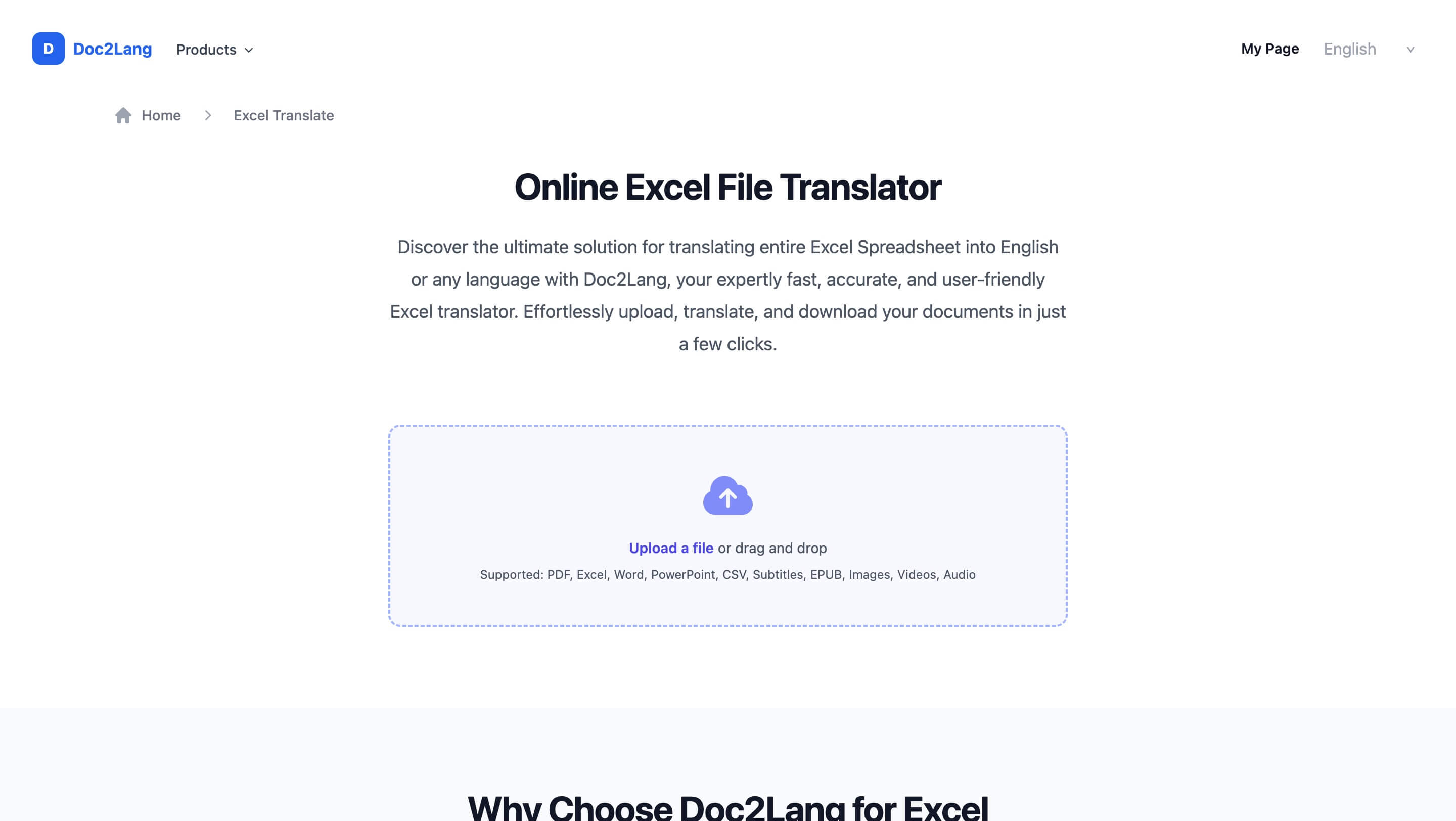
Clean. Functional. Said exactly what to do. And yet, our analytics told a brutal story: most visitors clicked away within 15 seconds. The ones who stayed often dropped off at the upload step. The handful who completed an upload converted well — but the funnel above was leaking everywhere.
We talked to users. The feedback was consistent:
I've tried five other PDF translators this month. They all promised format preservation. None delivered. Why should I waste another file on you?
Fair. Trust in this category is broken, and we couldn't fix it with copy. So we built an experience that requires zero trust to start: the Interactive Translation Demo.
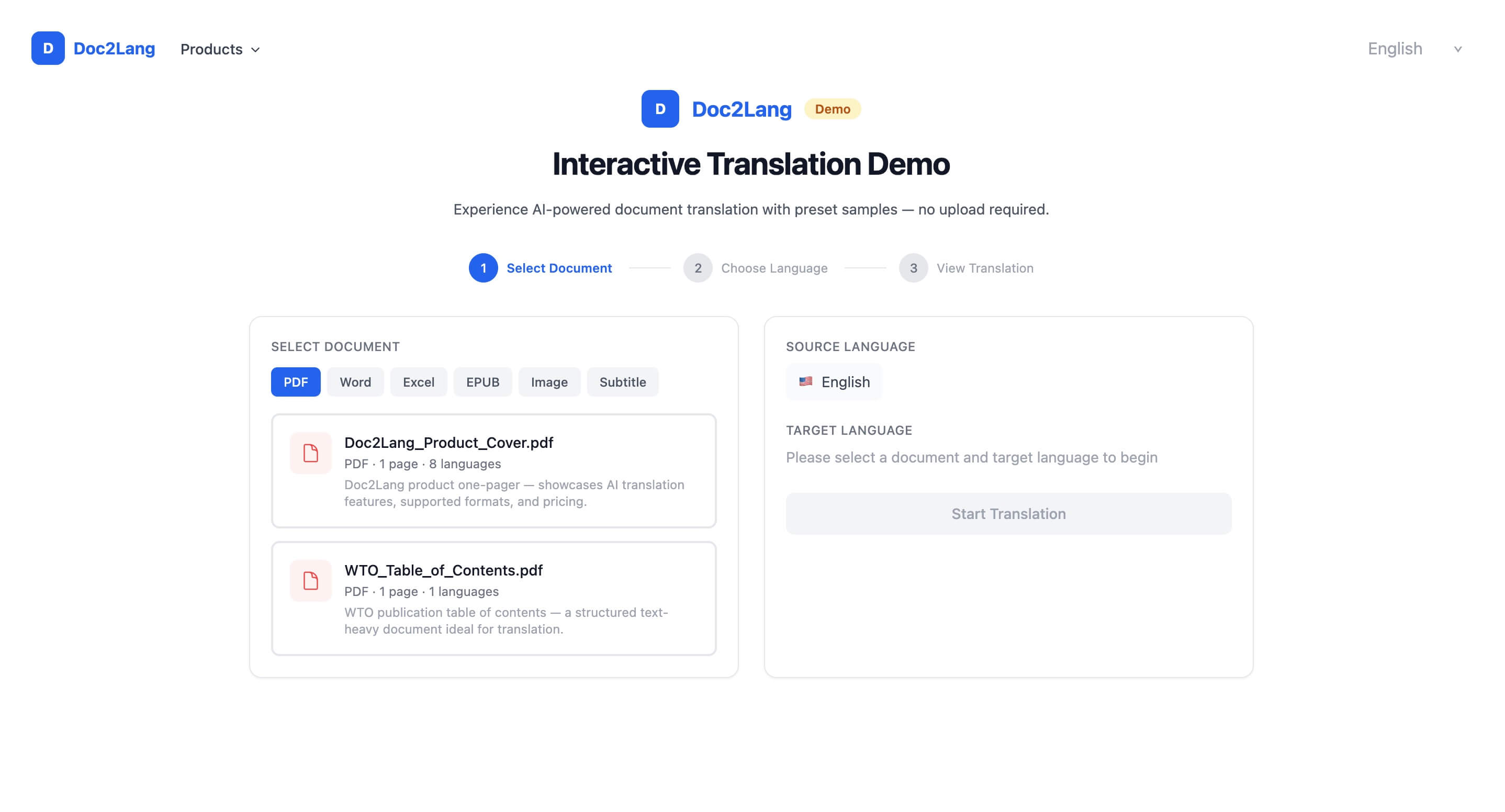
The principle is simple: let people experience the product before asking them for anything. No signup, no upload, no email verification. Pre-loaded sample documents, three clicks, instant result.
How Doc2Lang's PDF Translation Preserves Formatting
Let's get technical for a minute, because this is the part most blog posts gloss over.
When Doc2Lang processes a PDF for translation, it doesn't just extract text and translate it. It runs a multi-stage pipeline:
Stage 1: Document Parsing
We parse the PDF into a structured tree of layout elements — text blocks, tables, images, vector graphics — each with its position, size, font, color, and z-index preserved. This isn't OCR; for native PDFs we read the actual document structure. For scanned PDFs we fall back to a layout-aware OCR pass.
Stage 2: Semantic Grouping
Adjacent text blocks that belong together (like a paragraph split across two columns, or a heading and its subheading) get grouped semantically. This matters because translating each block in isolation produces garbage — context is everything.
Stage 3: Translation With Layout Constraints
Each semantic group gets translated by an LLM with explicit constraints: "translate this paragraph into Japanese, but the result must fit in a box this many pixels wide using this font." The model is instructed to choose phrasings that fit the available space. For headlines, this often means picking shorter synonyms. For body text, it might mean restructuring sentences.
Stage 4: Font Substitution
If the original PDF uses a font that doesn't support the target language's character set (e.g., a Latin-only font being asked to render Japanese), we substitute the closest visually-matching font that does. This is why our Japanese translations don't look like default system fonts — we maintain visual continuity with the original.
Stage 5: Re-rendering
Finally, we re-render the PDF from scratch using the translated text, original images, original vector graphics, and adjusted layout boxes. The output is a real PDF file you can open in Adobe Acrobat, not a screenshot of one.
You can see the result for yourself in the demo:
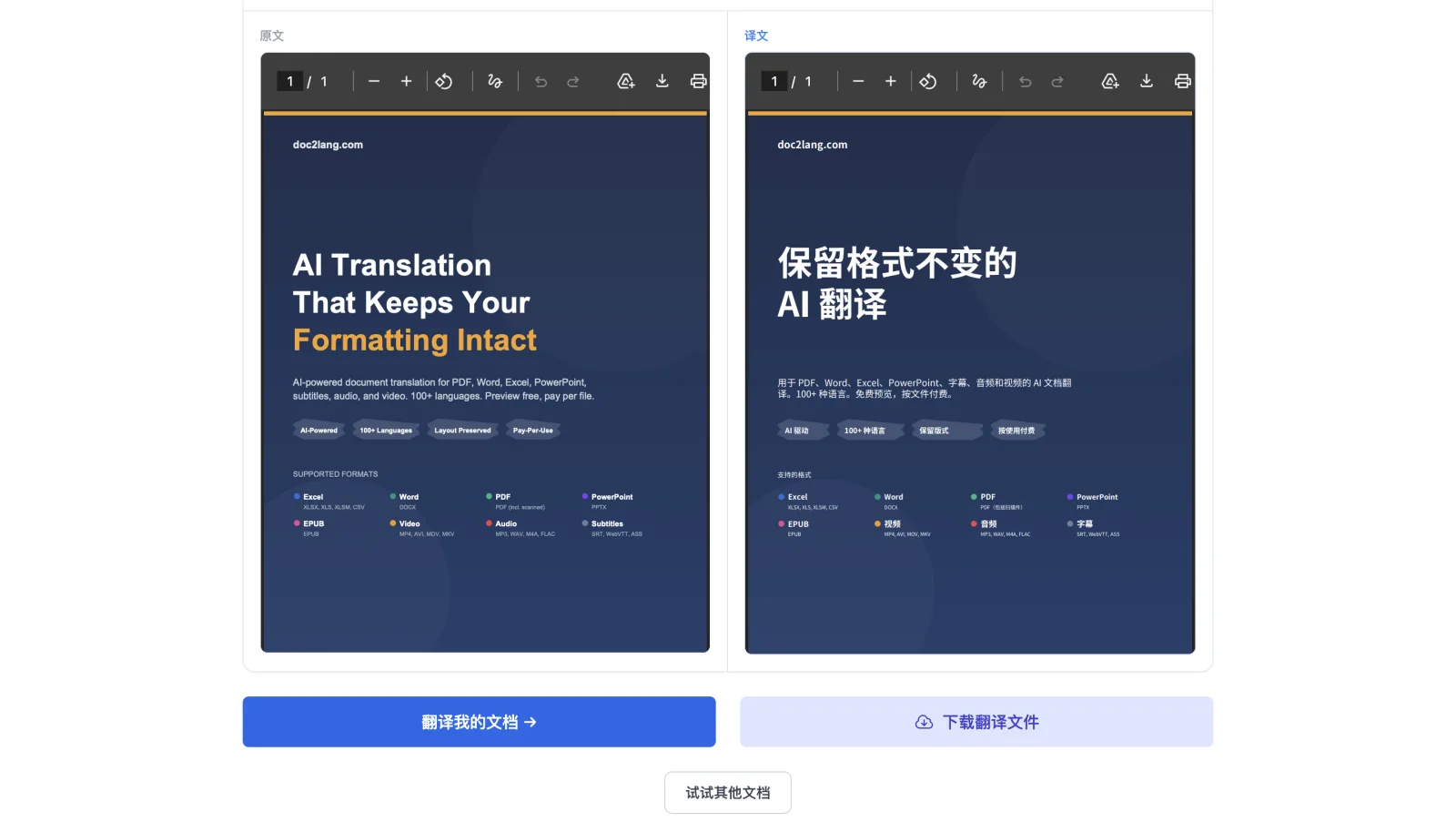
The English version on the left has a dark navy hero section, an orange accent on "Formatting Intact", four feature pills, and a supported formats grid with colored bullets. The Chinese version on the right keeps that visual structure while replacing the text: the main heading becomes "保留格式不变的 AI 翻译", and the feature pills become "AI 驱动", "100+ 种语言", "保留版式", and "按使用付费". The source and translated PDFs are both available in the demo, so you can inspect the result directly.
This sample shows what format-preserving PDF translation means in practice. Its major visual elements remain in place, but results can vary with the source PDF, fonts, and target-language text length.
The Demo Flow: Three Clicks to "Wow"
We deliberately designed the demo to be the opposite of a form. Three steps, no friction:
Step 1: Pick a sample document. We pre-loaded files that show off real-world challenges — a product one-pager with complex layout (Doc2Lang_Product_Cover.pdf), a structured text-heavy WTO publication table of contents (WTO_Table_of_Contents.pdf), and a Blender open movie subtitle file (Sprite Fright.srt). These are real edge cases, not toy examples.
Step 2: Pick a target language. We support 100+ languages for both PDF translation and subtitle translation. The demo exposes the eight most popular ones as clickable buttons with flag emojis: Chinese, Japanese, Korean, Spanish, French, German, Italian, and Portuguese.
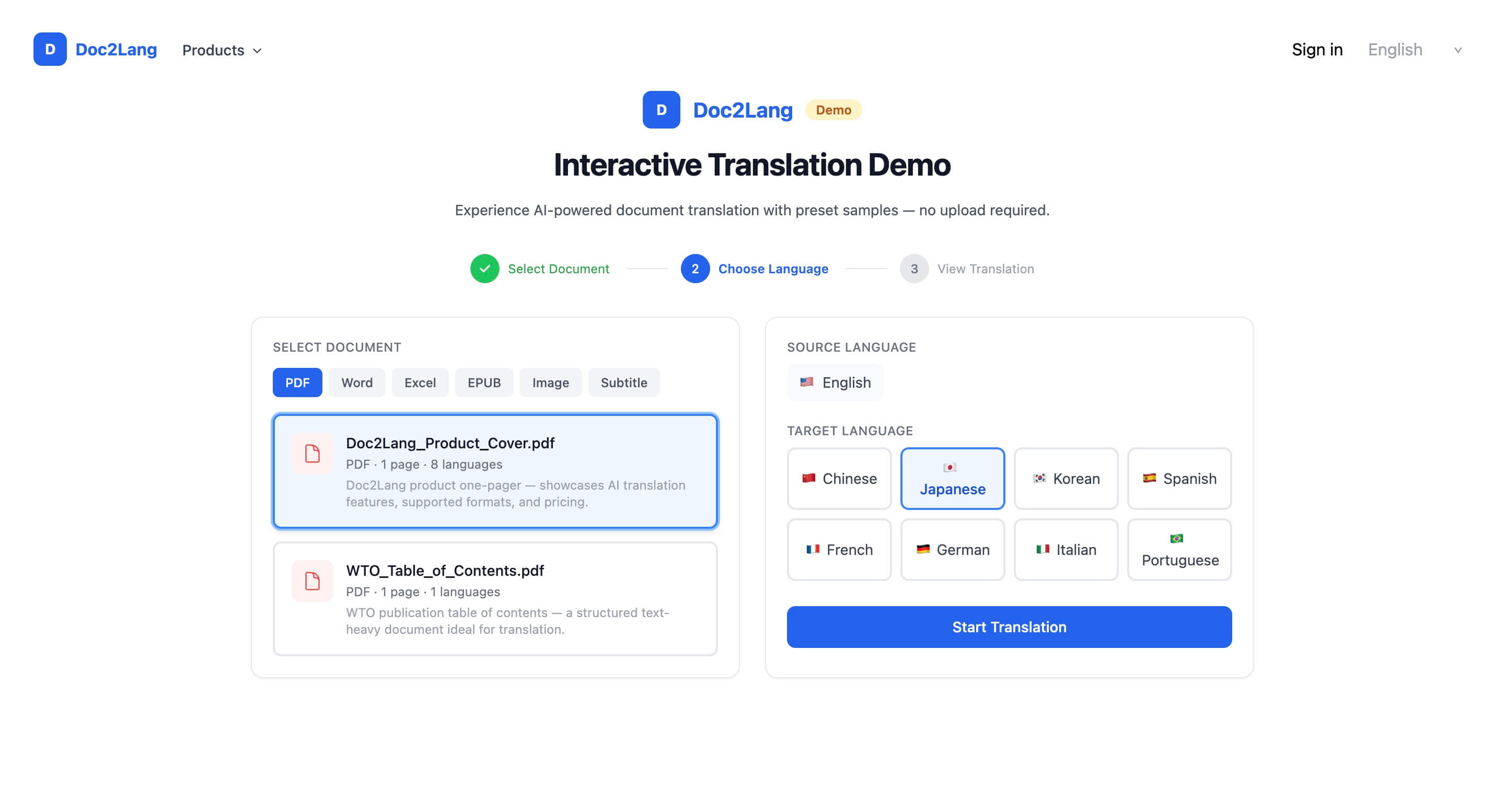
Step 3: View the translation. The result loads side by side with the original. For PDFs, both sides render as actual PDF previews with zoom, rotate, and download controls. For subtitles, both sides show as a synchronized table with timestamps in a center column.
That's it. No account, no upload, no waiting in a queue.
How Doc2Lang's Subtitle Translation Preserves Timing Codes
Subtitle translation has its own technical landmines. The format looks deceptively simple — SRT files are just plain text with timestamps and dialogue lines:
1
00:00:17,000 --> 00:00:19,000
Hello, Mr.Snail!

2
00:00:19,500 --> 00:00:22,000
Aw, you cute little cornu aspersum.
But translating subtitles correctly requires solving several problems at once:
- Timestamps must be preserved exactly. One missing comma or wrong newline and the whole file fails to parse in VLC, YouTube, or Premiere Pro.
- Line length must respect screen reading speed. Japanese fits roughly 13 characters per second; English fits about 17. A subtitle that translates literally often won't be readable in time.
- Context spans multiple lines. "I swear I'm gonna kill her" on line 5 only makes sense if you know who "her" refers to from line 3. Translating each line in isolation produces nonsense.
- Speaker tone must carry over. A character's voice, slang, and personality should survive translation. Sprite Fright's "Sugar Buns" should not become a literal "砂糖パン" (sugar bread).
Doc2Lang handles all of these. The translation engine reads the entire subtitle file as a script, maintains character voice across scenes, respects screen-time constraints, and outputs a valid SRT file with the original timestamps retained.
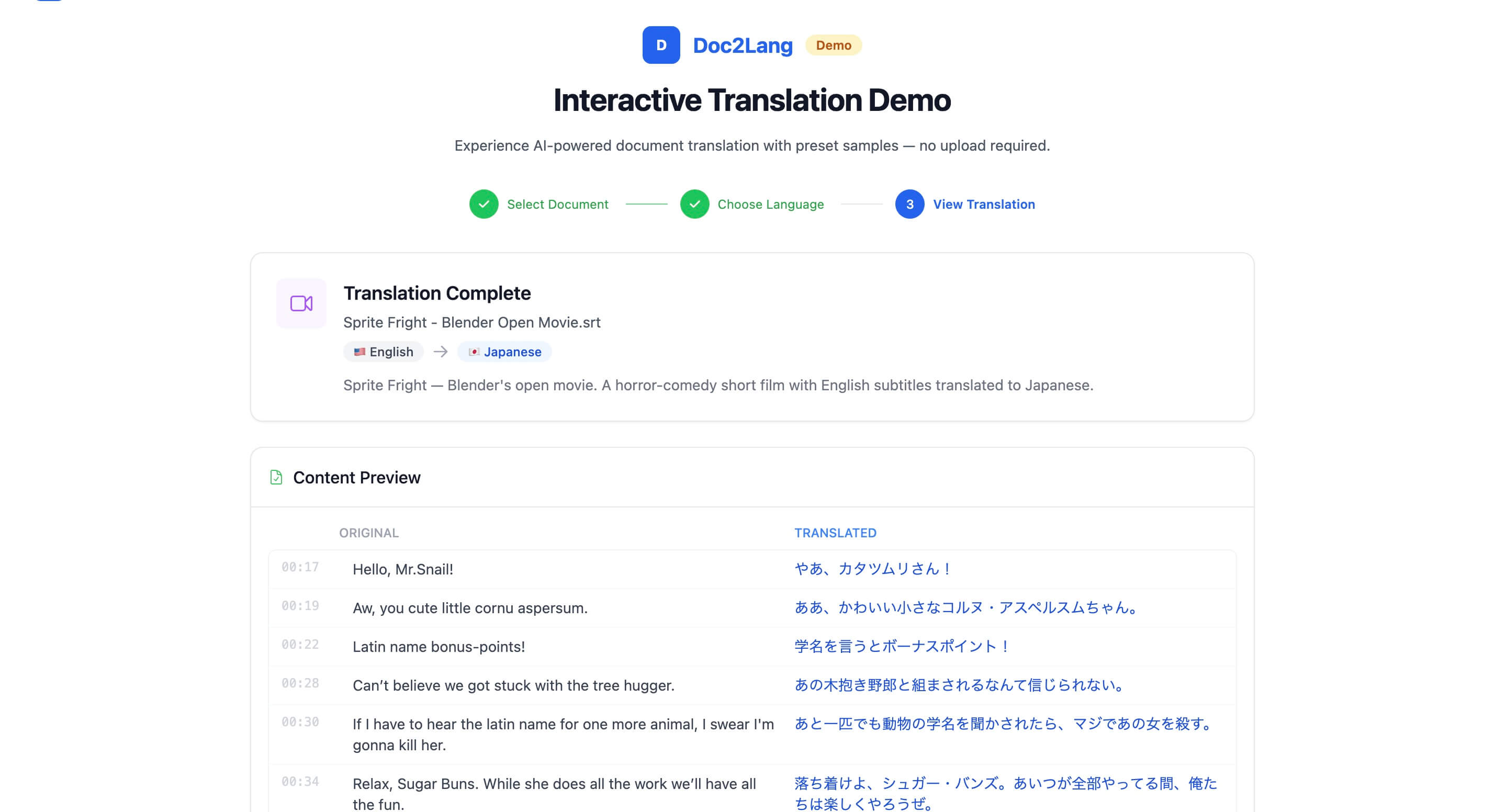
You can try this for yourself in the demo with Blender's Sprite Fright short film. We chose it because it's a Creative Commons release (so we can legally use it), the dialogue is funny, and it has tight comedic timing that breaks most subtitle translators. Watch how "Hello, Mr.Snail!" becomes "やあ、カタツムリさん!" at exactly 00:17 — same timestamp, same playful tone.
Doc2Lang supports SRT, WebVTT, and ASS subtitle formats with full timing preservation across 100+ languages.
All of that assumes you already have a subtitle file. If you only have the video, Doc2Lang can generate subtitles from the audio and translate them in a single pass.
Try the Doc2Lang Demo
The interactive demo is live now, so you can translate a sample PDF or subtitle file right away. No signup, no upload, no catch.
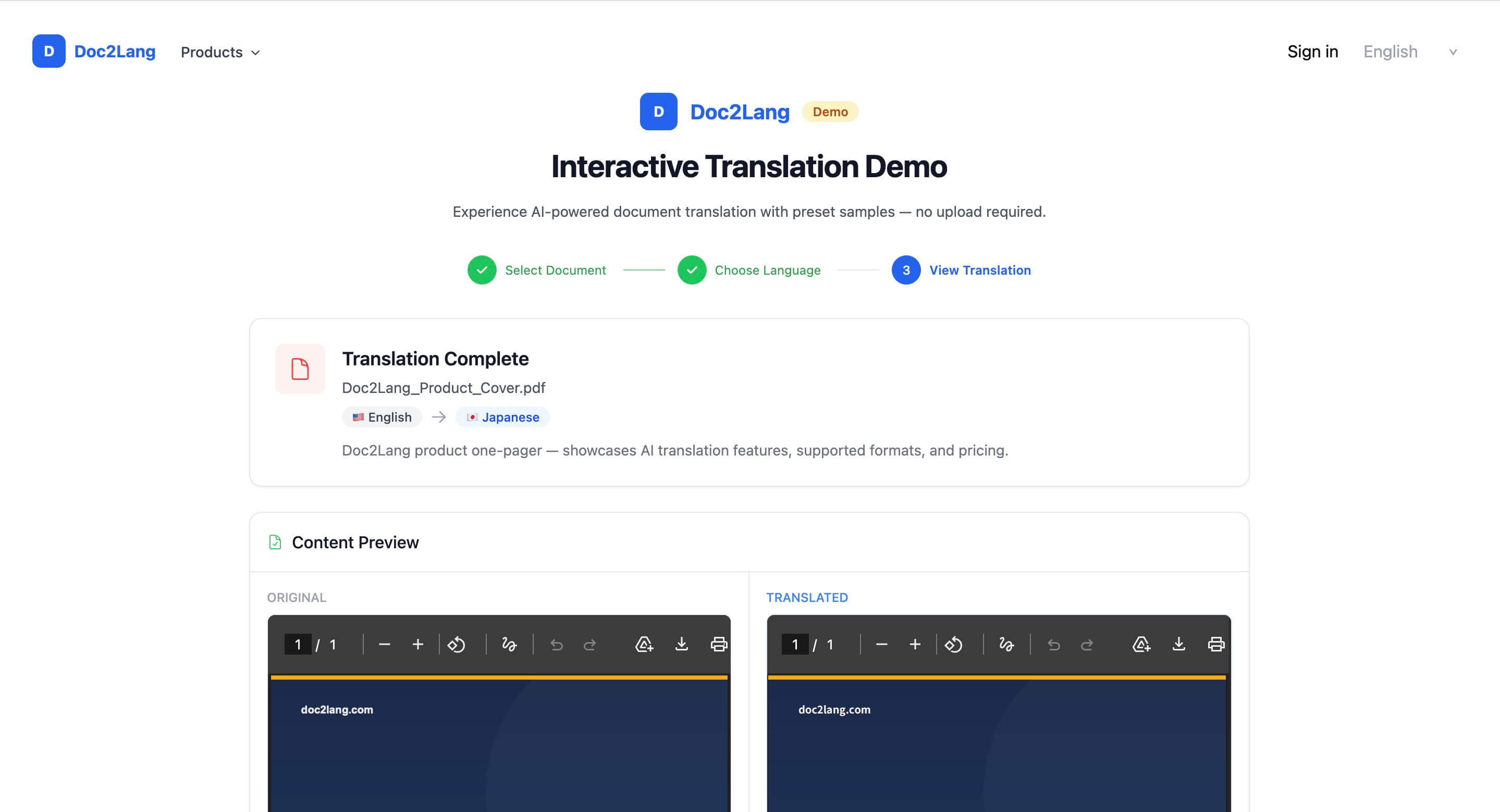
If you've ever been burned by a "translate PDF online" tool that flattened your beautiful document into garbage, this demo is for you. Click around. Try the Japanese translation, then try the German one. Open the side-by-side view. Download the translated PDF and open it in Adobe Acrobat. Compare it to the original. We think you'll see the difference immediately.
What's Coming Next
Right now the demo covers PDF translation and subtitle translation. Over the next few weeks we're adding live demos for every format Doc2Lang supports:
- Word document translation (DOCX) — preserving styles, headers, footers, tables, embedded images, and tracked changes. Especially useful for translating contracts, reports, and academic papers.
- Excel spreadsheet translation (XLSX, XLSM, CSV) — preserving formulas, conditional formatting, multi-sheet workbooks, and pivot tables. Critical for financial models and data exports.
- PowerPoint presentation translation (PPTX) — preserving slide layouts, animations, speaker notes, embedded charts, and SmartArt. Essential for international keynotes and sales decks.
- EPUB ebook translation — preserving chapter structure, table of contents, footnotes, and reading flow. Used by indie authors translating their books for global markets.
- Image translation (PNG, JPG, WEBP) — using OCR plus visual re-rendering to preserve text-in-image layouts. Useful for translating screenshots, infographics, and scanned documents.
Each of these formats has its own unique format-preservation challenges, and each one will get its own dedicated demo. Subscribe to our release notes to be notified when each one ships.
Frequently Asked Questions
Q: Do I need to create an account to use the Doc2Lang demo?
No. The interactive demo requires zero signup, zero upload, and zero email verification. It runs entirely on pre-loaded sample documents.
Q: How many languages does Doc2Lang's PDF translator support?
Doc2Lang supports 100+ languages for PDF translation, including Japanese, Chinese (Simplified and Traditional), Korean, Spanish, French, German, Italian, Portuguese, Russian, Arabic, Hindi, Vietnamese, Thai, and many more.
Q: What subtitle formats does Doc2Lang support?
Doc2Lang supports SRT, WebVTT, and ASS subtitle formats. All timing codes, formatting tags, and styling are preserved during translation.
Q: Can Doc2Lang translate scanned PDFs?
Yes. For scanned (image-based) PDFs, Doc2Lang runs a layout-aware OCR pass before translation, then re-renders the result as a fully searchable PDF in the target language.
Q: How does Doc2Lang's pricing work?
Doc2Lang uses pay-per-file pricing — no subscription required. You can preview every translation for free before paying, so you only pay for results you're happy with.
Q: What's the difference between Doc2Lang and Google Translate or DeepL?
Google Translate and DeepL are excellent for translating raw text, but they don't preserve document formatting. Doc2Lang is built specifically for document translation with layout preservation — fonts, tables, images, charts, and multi-column layouts all stay intact in the output file.
Doc2Lang is an AI-powered document translation platform specializing in format-preserving translation for PDF, Word, Excel, PowerPoint, EPUB, images, and subtitles. We support 100+ languages with pay-per-file pricing and free preview before checkout. Try the interactive demo or translate your own document today.
Related articles: